

Apply for Capital Funding (United States)
Description: Learn how to apply for Capital funding, verify your bank account, and accept your offer.
Availability: United States
Start a Capital Application
Important: You must be logged in as the business owner to apply for Capital funding.
- To start a Capital application, open the Capital page and select the Apply button.
- On the Capital page, review your funding indication, then select Apply Now.

Note: The amount on the Capital page is only an indication. Your final offer is calculated after you apply.
Enter Personal and Company Details for Capital
The Capital application collects personal details and company details before you verify your bank account.
- On the Company details step, enter the following information:
- Country
- Company type
- Trading name
- Business Tax ID (optional)
- Business website (optional)
- Business address line 1
- Business address line 2 (optional)
- ZIP code
- City
- State

- Select Next.
- On the Personal details step, enter the details for each person who owns 25% or more of the company:
- First name and Surname
- Date of birth
- Type of person
- Phone number
- Social Security Number (SSN)
- Address Line 1

Note: A soft credit check is performed using this information. Soft credit checks do not affect credit scores.
- To add another owner, select Add another person and enter the same details for that person.
- Select Next.
Verify Your Bank Account for Capital
Capital uses Plaid to verify your bank account online. This verification confirms your trading history and matches offers to your cash flow.
-
On the Verify bank account step, select Verify in 1 minute.

Note: To verify manually instead, select Upload bank statements manually (PDF).
- In the Plaid window, review the data you are sharing (Contact Details, Account transactions, and Account details), then select Continue.

- On the Select your institution screen, select your bank from the list, or search for it.

- Select the account type for your bank. For example, Chase offers Business, Personal, and Commercial.

- Scan the QR code with your phone camera to continue verification in your banking app.
Note: To use your bank's website instead, select Go to your bank website.
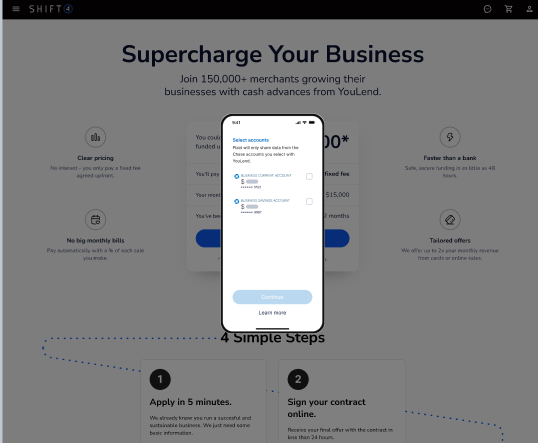
- On your phone, select the accounts to share, then select Continue.
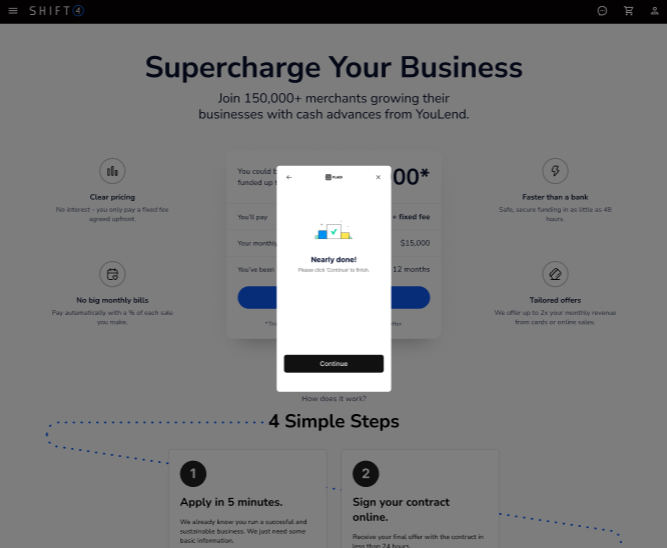
- When the Nearly done! message appears, select Continue.
Submit Your Capital Application
After you verify your bank account, review your information and submit the Capital application.
- On the Review your information step, confirm your company information, personal information, and bank statement status.

- To change any details, select Edit next to the section you want to update.
- Select Submit application.
- When the Application complete message appears, select View application status.
Note: Offers are usually generated and emailed within a few hours.
Check Your Capital Application Status
The Application status window shows the current progress of your Capital application and the Shift4 contact details for questions.
In the Application status window, review the current status of your application.
Accept a Capital Funding Offer
When your Capital offer is ready, customize the offer, then review and accept the terms.
- In the Customize your offer window, choose your funding amount and payment plan:
- Offer amount: Enter the funding amount you want.
- Payment plan: Select the percentage of future sales used for repayment.

- Review the total amount to pay, the estimated payback date, and the payments your offer is based on.
- Select Continue with offer.
- In the Review & accept terms window, review the offer details and terms.
Note: To change your offer, select Customize your offer.
- Select both declaration checkboxes to confirm that you agree to the full terms in the Merchant Financing Agreement and that you are authorized to enter into the agreement for your company.
- Select Accept & sign.

View Your Capital Funding Details
After your Capital funding is issued, the Capital page shows your remaining balance and repayment details.
On the Capital page, select View Funding to see your remaining balance and repayment details.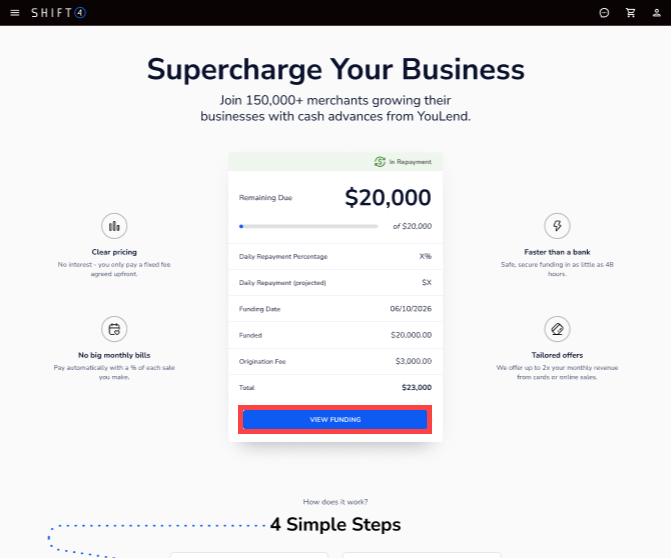
View Capital Repayments in Deposit Reporting

Capital repayments appear in deposit reporting as shift4 capital rows, separate from your payouts.
Each Shift4 Capital row is a financing repayment. It is not included in the Payout total or the card brand totals.
How the repayment is collected depends on your bank account setup:
- DDA setup: The repayment is deducted before your payout is deposited. Net Payout minus Shift4 Capital equals the Amount Deposited.
- ACH setup: Your full payout is deposited, and the repayment is debited separately afterward.
Note: One deduction covers multi-batch payouts, such as weekend batches.