
Universal Transaction Guide Installation For Focus POS
Description: Review the installation process for the UTG for Focus POS accounts.
Note: Before initiating the installation process, be sure to enter the port exceptions to the Windows Firewall.
- UTG Inbound Rule (17476)
- UTG Outbound Rule (26880-26881)
Initial Set-up Via USB Interface
- Unpack physical devices and attach cables as needed.
- Plug-in devices and allow for initial boot-up with two power cycles.
- Install the device drivers for your selected Ingenico Device.
- Go into the Control Panel and into the Device Manager.
- Select the ComPorts tab, and at the bottom should be a USB serial device listed as the installed Ingenico device.
- Baud rate of "115200," then select Advanced.
- Disable the FIFO buffer, and verify that the Driver has set the COM port to 10 (or your preferred COM port for communication).
- Launch the UTG Installer: https://myportal.shift4.com/downloads/utg2/3180/utg2setup.exe
UTG TuneUp Settings
Express Tab
At the top of the window, there will be a Station Name text box. Please fill this out with the name of the terminal the program is running on (e.g., Focus, Backup, Station 3, Etc.)

- Serial: This is the Shift4 serial/account number
- Slot: The Slot corresponding to the account setup - can be located in the UTG Configuration Sheet or in Pipe Maintenance option in Transaction Manager. One Slot Per UTG Setup.
- Host Address: This is the Preferred IP when pulling up ipconfig/all in Command Prompt on the local computer.
- Locations: The five-digit Zip code of the store location
- API Serial Number: The same as the Serial Number.
Note: We do not change any other settings in the Express tab on the UTG.
API Interfaces Tab

- Select the ADD button then TCP/IP. This will open a new window.

-
- Name this window EMV (Station number)
- Select the Preferred IP
- Port should be set to 17476
2. Select the Add button and go to HTTP SSL.
Important: This is only if the Focus Dealer wants to set up the manual offline option. This is not for troubleshooting; Focus only uses TCP/IP for live processing.
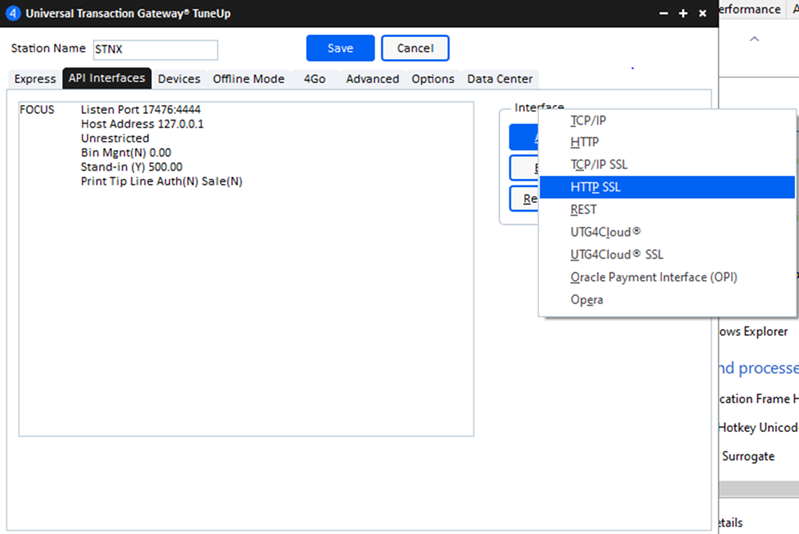

-
- Task Description - Leave as HttpSSL - This will let Manual Offline functionality work with FocusPOS.
- Host Address - If using a per-terminal setup, select 127.0.0.1. If using a per-system setup, select the Local IP address.
- Port - 16448
- Certificate Information - Use UTG Generated Certificates. All of the other settings should be blank.
- BIN Management - Leave Unflagged
- Receipt Options - Leave both Unflagged
3. Select OK and close the window.
Devices Tab
Focus can now do both USB and Ethernet setups.
Important:On the APITID it is 000x where x is the station number for stations 1-9. Once you go over 9 stations, it is 00xx, where xx is the station number.

.png?revision=1)
USB Set-up
- Select the ADD button to open the device configuration window.
- Name: EMV (Station number)
- The Device Type should reflect the device model.
- APITID should reflect the Terminal ID based on the workstation being installed.
- Set the port to COM10 and the Baud Rate to 115200.
- Disable Street Number Required in the MCE options.
- In the source serial box, enter the Serial number from the Express tab.
- If the device is supposed to be set to take tips, determine if the tip options should be via present or amount and set the options accordingly.
- Press OK to close the window.
Ethernet Set-up
- Select the ADD button to open the configuration window.
- Name: EMV (Station number)
- The Device Type should reflect the device model.
- APITID should reflect the Terminal ID based on the workstation being installed.
- Change the Connection Type to Direct TCP/IP.
- Disable Street Number Required in the MCE options.
- In the source serial box, enter the Serial number from the Express tab.
- If the device is supposed to be set to take tips, determine if the tip options should be via present or amount and set the options accordingly.
- Press OK to close the window.
If the Customer wants device to prompt for a tip:
- Select the Tip button.
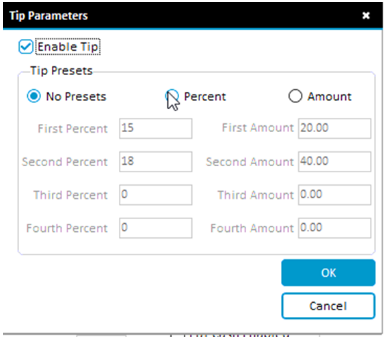
2. Save your work at this point and reopen TuneUp.
Offline Tab
Important: Prior to working on the Offline tab, be sure to select the blue Save button to save your work so far. You will then need to re-open the UTG TuneUp.

- Set Maximum Hours - 12 - Number of hours before the system goes back to online mode.
- Stand-In Limit of 250
- Advanced Options
- Flag Return Error on Void if Offline
- Unflag Decline All Non-Bank Cards
- Transaction Storage period (days) 60
- Max Upload attempts 3
- Select Save and open the UTG Stand Alone UTG2.exe.
UTG Final Setup
- Launch the UTG2.exe
- Is the UTG in Ready No Failures -In the Green Bar
- Devices should all say Idle for at least 3-5 seconds at a time.
- PIN Pads should read Shift4 Payments on the physical screens
- Check that the EMV files have populated the c:/shift4 EMV folder and ensure that there are 3 files for each device matching the Serial number of the PIN Pads.
- If these have not populated, double-check that the APITID names are accurate and perform a Terminal Download in the UTG. Right-click Device Maintenance, select the needed devices and select Terminal Download.
FOCUS
Important: These instructions are for FOCUS installations where the UTG is installed on every register and is not guaranteed to work in a different installation situation.
Open Focus and Open Setup page.
- Go to MISC. tab and the Credit/Gift/Loyalty tab.
- Select Shift4 from the dropdown list.
- Go to the Credit Card Direct tab, and in the IP Box, fill out the Preferred IP from Command Prompt, the port as 17476, and the Zip Code.
- The Auth Token can be found on the UTG configuration Sheet provided by Shift4.
- Select the Register button. This will allow Focus to do the Token Exchange with the UTG to get an Access Token.
- If Focus freezes up, there is a communication issue between Focus and the UTG.
- Verify that the UTG is running.
- Verify the Preferred (Loopback) address in Express and API Interface tabs.
- Verify ports are set to 17476 in the TCP/IP API interface.
- If Focus freezes up, there is a communication issue between Focus and the UTG.
- Select Save and close the window.
Try a test transaction.
Note: To ensure that Manual Offline Words, The Command “Offline” to either the command Rail or a Canvas such as Manager Functions.
Important: Do NOT use the back office Credit/Offline button.