
Configure Rounding in Connect for Appetize
Description: Rounding can be configured at the Vendor or Terminal Role level. There are several options available that can be used for cash or all tenders.
- Round Up: The total will round up by the specified interval for cash or all tenders.
- Round Down: The total will round down by the specified interval for cash or all tenders.
- Commercial: Less than half the increment rounds down while greater than or equal to half the increment rounds up.
- Round up for charity: This allows customers to round up their order to the nearest whole dollar amount. The difference is generally donated to a specified cause.
Vendor Role
- Log in to Connect and select Options in the left side menu.
- Select Vendor Roles from the menu.
- Search for and select the Vendor Role to edit.
- Edit the Rounding settings on the General tab under the General section.
- Select the Pencil icon to make mass changes.
- Rounding Type: Choose how the associated vendors will round transactions.
- Round up
- Round down
- Commercial
- Rounding Precision: Meant to round to the nearest of the chosen denomination.
- Ex: If precision is set to one cent, then the price would round to the nearest cent (no rounding in this case), but if set to a dollar the amount would round to the nearest dollar.
- If subtotal = $1.95, the total would be $2.00.
- Rounding Allowed Payment Type: This setting will set a specific tender type.
- CASH
- ALL
- Ex: If precision is set to one cent, then the price would round to the nearest cent (no rounding in this case), but if set to a dollar the amount would round to the nearest dollar.
- Rounding Type: Choose how the associated vendors will round transactions.
- Select the green Checkmark in the upper right corner to save any changes.

Terminal Role
- Log in to Connect and select Options from the left side menu.
- Select Terminal Roles from the Options menu.
- Search for and select the Terminal Role to edit.
- Navigate to the Calculations tab.
- At the bottom of the Calculations tab there is a Rounding field.
- Set that to Yes in order to see the additional options.
- Select the Rounding Type.
- Round up
- Round down
- Commercial
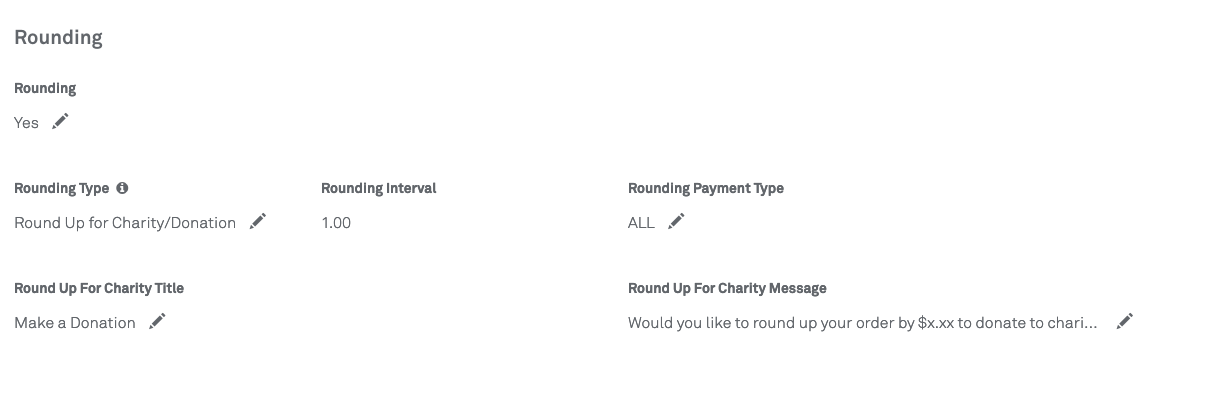
- Round up for charity
-
- Rounding Interval: Select .01, .05, .10, .25, .50, or 1.00.
- Round Up for Charity/Donation will automatically set Rounding Interval to 1.00
- Rounding Payment Type: Cash or all tenders.
- Rounding Interval: Select .01, .05, .10, .25, .50, or 1.00.
- If you enable Round Up for Charity/Donation, you have the option to enter a Round Up for Charity Title and Round Up for Charity Message
- Note: If you decide to leave these inputs blank/null, the following default text will be used in Activate X.
- Round Up for Charity Title: “Make a Donation”
- Round Up for Charity Message: “Would you like to round up your order by $x.xx to donate to charity?"
- Note: If you decide to leave these inputs blank/null, the following default text will be used in Activate X.
Note: Round up for charity is no longer supported in Classic Activate.
Reporting
The rounding totals will be available in the All Orders report in the Analytics module. The CSV/XLSX export includes the rounding type (Round Up For Charity, Rounding Up Or Down, Round Down, Round Up) and rounded amount.