
Venue Connect Settings for Appetize
Description: Review how to configure Venue settings in Connect below.
Venue
General
- Venue Image: An image can be uploaded here for the Venue's Mobile Ordering section. (Optional)
- Venue Name: The name of the Venue that will be displayed on all Reports and the Mobile App if applicable.
- Region: State where the venue is located.
- Venue Status: The venue must be open to take and complete orders. When the venue is closed, orders can not be taken.
- Time Zone: The time zone of the Venue.
- Training Mode: Enable to simulate real scenarios without charging credit cards for sales.
- Is Test Venue: If the Venue is a Test Venue, Set it to "Yes."
- Currency: The currency the Venue accepts.
- Is Campus: If the Venue is on a College Campus, set it to 'Yes.'
- Tax Per Item: Enable if the venue will calculate tax by the value of each item.
- Enable Printing: Enable options for printing.
- Check Syncing: If the Venue will need to Check Syncing, set it to "Enabled."
- Allow Partial Tip Refund: If the Venue will need to allow partial tip refunds, set it to "Yes."
- Rounding Type: Use Price Rounding Methods to round sale prices to convenient numbers, such as Round up, Round down, Commercial, or Round up for charity/donation.
- Rounding Precision: Select the increment amounts for rounding price.
- Rounding Allowed Payment Type: Select the payment type used to round the amounts.
- Restaurant: If the venue is used as a Restaurant, Set it to "Enable."
- Event Based: Enable if the venue will use Events with Cash Management; Disable if Cash will be tracked without events.
- Enable Order Status Board: Enable if the venue will use Order Status Board; set it to "Yes."
- Address: Enter the physical address of the venue.
- Phone Number: Enter a contact number for the venue.
- Display Name: Enter a display name if it differs from the Venue name.
Note for Training Mode: Turning Training Mode Off at the event's start is important. If any orders are taken in Training Mode during a live event, transactions will NOT be recorded.

Venue Inventory
- Track Inventory: If this venue will track inventory, Set it to "Yes."
- Add Inventory back on Refund: Enable if the stock should be added back to Inventory when processing a Refund.
- Cost After Receiving: Set the Cost of Goods to show the last price paid or the weighted average of the cost for past purchases.
- Auto-Calculate COGS: This will calculate the cost of goods for inventory automatically.
- Advance Feature: If this venue needs advanced features, Set it to "Enable."
- Disable Standsheet Adjustment (aka Perpetual Inventory): Enable to add an adjustment column within Stand sheets.
- True Up Default: This will determine the default count value setting within the true-up module.
- Current: This will pull the current on-hand values for the items at each location.
- Required: Each item will require an inputted value before completing the True-Up
- Zero: All on-hand counts will be reset to zero for the locations included in the True-Up event.
- Supplier Number: Determine if a Supplier Number is required when creating new Inventory items.
- DUPLICATE TRANSFER DOCKET: This will determine if the Transfer docket will be duplicated.

Item Countdown
Item Countdown: Enable users to see sold-out items updated in real-time.
Bring Items to Par: If the venue needs to set a minimum amount of ingredients needed to meet the demand, Set it to "Yes."

Alcohol
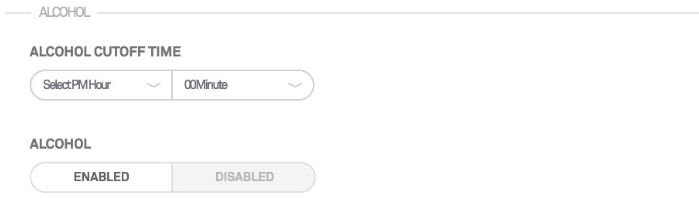
- Alcohol Cutoff Time: The time alcohol should be cut off for all Vendors in the Venue.
- It helps to automate the process but should not be relied upon exclusively.
- Alcohol: Disable to immediately cut off alcohol sales for all Vendors in the Venue.
- Enable to allow Alcohol sales at all locations.
Reports
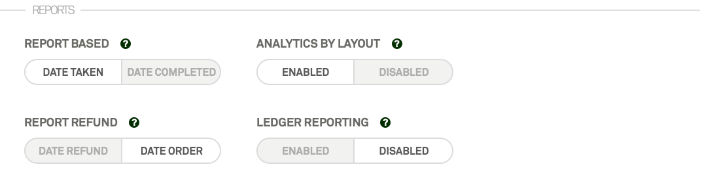
- Reports Based: Determine how Transactions uploaded after the event's day will be pulled into reports.
- Date Taken: The transactions uploaded after the date of the sale will be reported on the date the transaction took place.
- Date Completed: The transactions uploaded after the date of the sale will be reported on the date the transaction was completed.
- Analytics by Layout: Allows reports to reflect sales based on selected layout.
- Report Refund: This will determine how refunds will be reported within Connect.
- Date Refund: Refunds will be reported by the date the order was refunded.
- Date Order: Refunds will be reported by the order's date.
- Ledger Reporting: Refunds will be reflected within the server totals for the day they are returned when enabled.
User
- Username: The admin username that has access to the main Connect account for the venue.
- Email Address: The admin email address that has access to the main Connect account for the venue
- Old Password: The old password that was used.
- Password: Enter a new password along with the old one to change the current.

Financial
- Please get in touch with your Account Manager or Appetize Support to edit Financial or Gateway information.
Skidata
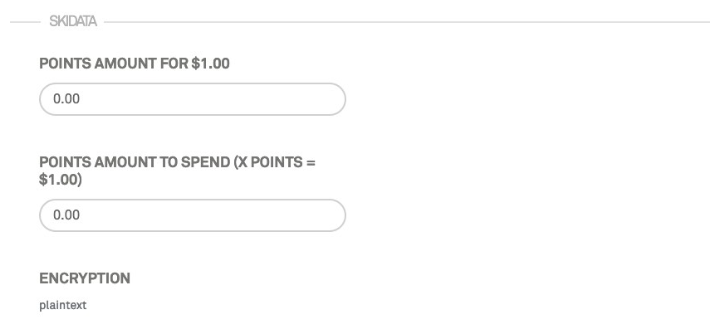
- Skidata refers to the loyalty points feature that differs from venue to venue.
Timeclock
- Appetize integrates directly with Humanity for employee time clock functionality. Please get in touch with your Account Manager for more information.

This feature is no longer supported.
Items
- Required Tax For Item: If the venue wants the tax to be required, Set it to "Yes."
Extras
- Wristband PIN required: Enable if wristbands will require a PIN to process transactions.
- Use Loaded Ticket: Enable or disable the use of loaded tickets within the system. Please contact the Account Manager to input the loaded ticket information.
- Complete Pending Orders: Select to complete any Pending Orders.
- Note: This will only close Pending Orders at the KDS. It will not close Restaurant Mode orders that are pending awaiting the Tip entry.
- Support Email Address: When customers receive emailed receipts or place mobile orders, those emails will be routed to this email address.
- Control PHP Mode: This feature is no longer supported.
- Day Start Time: Default reporting start time.
- Day End Time: Default reporting end time.
- Trim Alpha Characters From Stored QR Codes: It makes the QR code concise and delete extra characters from QR codes saved in the system.
- Tip Tender Toggles: All of these toggles can determine if a tip method is available or not.
- Blacklist Credit Cards: Cards can be blacklisted in the system and never be accepted due to declines, fraud, etc.
- Interact Theme: Relates to the Interact Kiosk application.
