
Import Customers on Advanced Retail
Description: Review how Customer Importing is handled by the Advanced Retail software. Much like standard Inventory, we use a customized template to collect and scrub the data to be imported into the software.
Customer Import Template
Overview of Excel Field for Customers
- MemberID: Similar to SKU for an item, this code can be used as a lookup for a Customer.
- Can be alpha or numeric (ex: C1000).
Note: Member IDs are required for Consignment Inventory.
- Can be alpha or numeric (ex: C1000).
- Salutation: (ex: Mr, Ms)
- CustomerType: (ex: Regular Customer, Consignee, VIP, Wholesale)
- FirstName: First name of the customer (ex: Mike)
- LastName: Last name of the customer (ex: James)
- Company: The company associated with the customer (ex: ABC Company Inc)
- Address: The address of the customer (ex: 123 Main Street)
- City: The city the customer resides in (ex: Philadelphia)
- ProvState: The province or state the customer resides in (ex: Pennsylvania or PA)
- PostalZip: Zip Code of the customer (ex: 18109)
- Country: The country the customer resides in (ex: United States)
- ShippingCity: The city associated with the customer to ship products sold to (ex: Los Angeles)
- ShippingProvState: The province or state associated with the customer to ship products sold to (ex: California or CA)
- ShippingPostalZip: The Zip Code associated with the customer to ship products sold to (ex: 90001)
- ShippingCountry: The country associated with the customer to ship products sold to (ex: United States)
- Phone1: The phone number of the customer (ex: 800-201-0461)
- Phone1Ext: The extension of the phone number associated with the customer (ex: 301)
- Phone2: A second phone number associated with the customer (ex: 800-632-1888)
- Phone2Ext: A second extension of the second phone number associated with the customer (ex: 302)
- CellPhone: (ex: 630-263-7345)
- Fax: The fax number of the customer (ex: 639-873-8438)
- Email: The email address of the customer (ex: examplecustomer@customer.com)
- Notes: Any notes on the customer (ex: great customer!)
- Tax1,2,3Number: The tax numbers on the customer (ex: 9643458)
- StoreCredit: The store credit of the customer (ex: $250.00)
- AR_Balance: The Accounts Receivable balance of the customer (ex: $1253.54)
- ARLimit: The maximum amount a customer can charge to their Accounts Receivable account
- Points: The redeemable points balance that the customer has accumulated (ex: 155000)
- Active: Whether the customer account is active or not (ex: Y or N)
- MailingList: Whether the customer has subscribed to your mailing list (ex: Y or N)
- EmailList: Whether the customer has subscribed to your email list (ex: Y or N)
- Any proceeding Attributes: (ex: Birthday)
Adding Columns to the Template
Columns can be added in the case of any additional Customer attributes that may be needed. Customer attributes will need to be entered into the database prior to importing the Customer data.
To add Customer attributes:
- Log in to the HT-Retail system using admin credentials.
- Navigate to Setup > General Settings > Attribute > Customer.
.png?revision=1)
For more information on adding customer attributes, visit the SKU & Custom Attributes article.
Importing the Customer Template
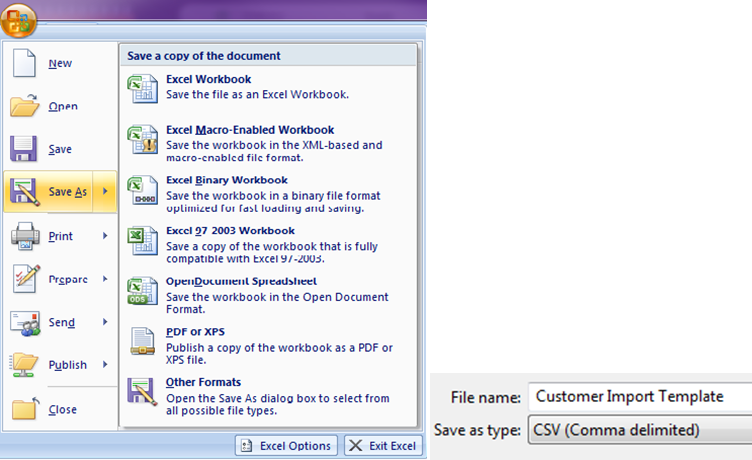
Once the Customer import file has been properly cleaned, save your Excel file as CSV.
.png?revision=1)
To import:
- In the software, navigate to Customers > More > Import Customers.
- Select the CSV file you just completed.
.png?revision=1)
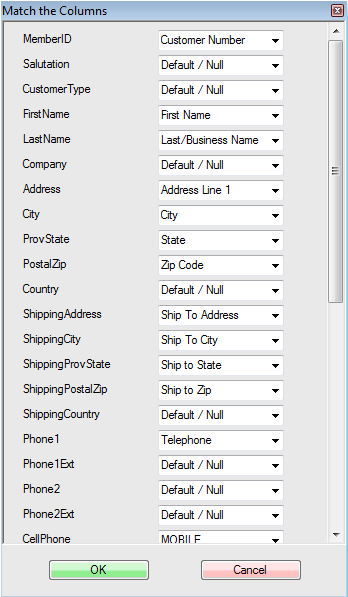
- As with any other import in the HT-Retail software, match the appropriate column names that are to be imported, including any custom attributes that have been created, and click OK.
.png?revision=1)
- A prompt will appear confirming that the import has been completed and to check the import for accuracy.
.png?revision=1)
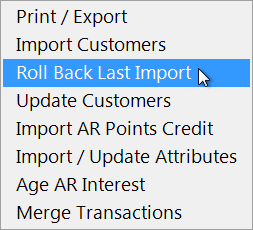
- If any errors were made, access the Customer menu again and select Roll Back Last Import from the More tab.
.png?revision=1)