
Transfer a Check on POSitouch Manager Screen
Description: Learn to change a table and/or server number, merge two or more checks, and transfer multiple checks to a different server on the POSitouch Manager Screen.
Change Table Number and Server Number
- Swipe the manager's card to proceed. Alternatively, a fingerprint scan or the manager’s number and password may be used. Then, select Manager Screen.

- Select Transfer a check > Enter.
.jpeg?revision=1)
- Select Change Table# and/or Server# > ENTER.
.jpeg?revision=1)
- Enter the table number and press ENTER, OR select REOPEN CHECKS and choose the check from a list.
.jpeg?revision=1)
To keep the same table number, press Enter.
To change the table number, type in the new table number and press Enter..jpeg?revision=1)
- To keep the same server number, press Enter.
To change the server number, either type in the new server number and press Enter OR choose Select Server, select the new server, and press Enter..jpeg?revision=1)
Combine with Another Table or Check
- Swipe the manager's card to proceed. Alternatively, a fingerprint scan or the manager’s number and password may be used. Then, select Manager Screen.
.jpeg?revision=1)
- Select Transfer a check > Enter.
.jpeg?revision=1)
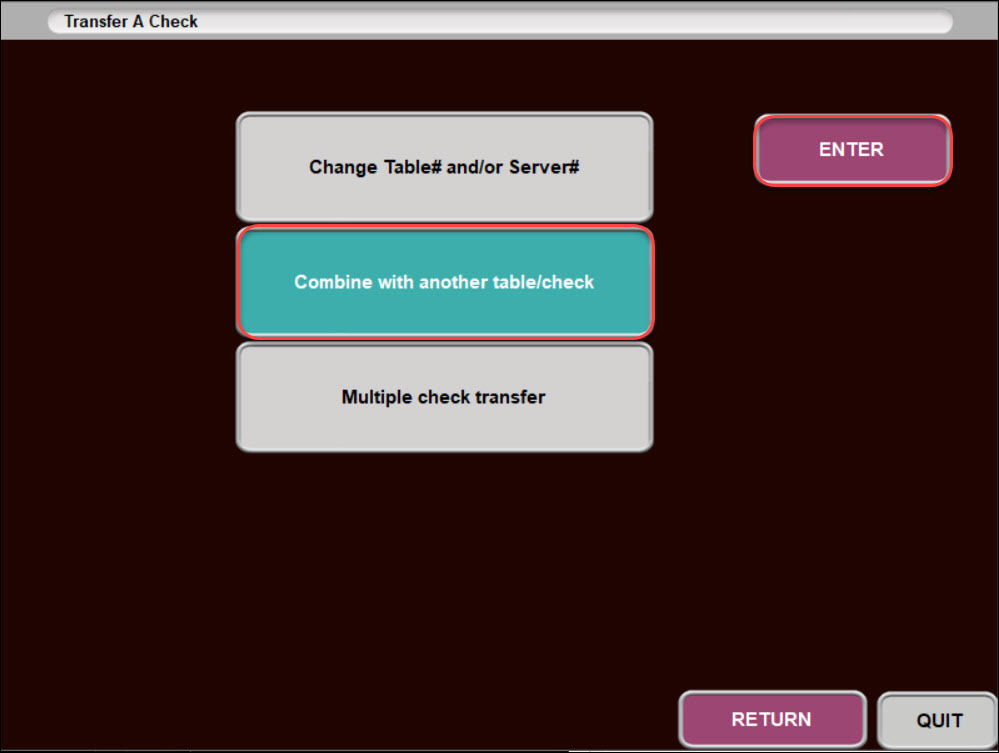
- Select Combine with another table/check > Enter.
.jpeg?revision=1)
- Enter in the FROM table and press Enter OR select REOPEN CHECKS, select from the list of checks, and press TRANSFER.
.jpeg?revision=1)
- Enter in the TO Table number and press Enter OR select REOPEN CHECKS, select from the list of checks, and press TRANSFER.
.jpeg?revision=1)
Transfer Multiple Checks to a Different Server
- Swipe the manager's card to proceed. Alternatively, a fingerprint scan or the manager’s number and password may be used. Then, select Manager Screen.
.jpeg?revision=1)
- Select Transfer a check > Enter.
.jpeg?revision=1)
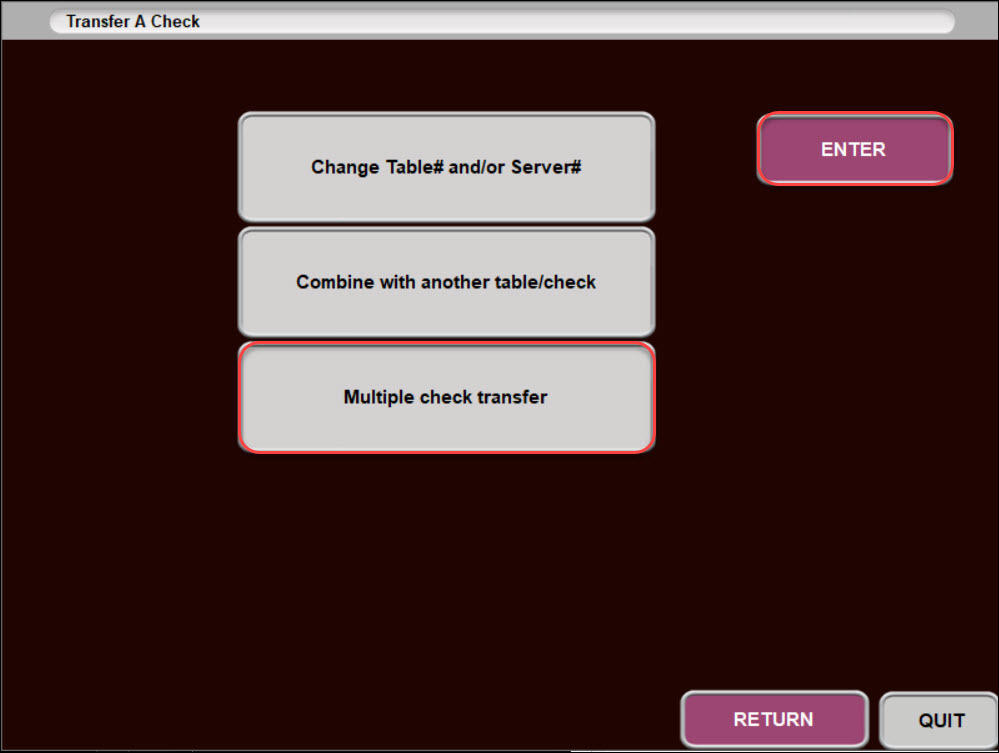
- Select Multiple check transfer > ENTER.
.jpeg?revision=1)
- Select multiple checks and select TRANSFER.
.jpeg?revision=1)
- Select the server name that the checks will get transferred to and select TRANSFER.
.jpeg?revision=1)
Combine Multiple Checks or Tables
- Swipe the manager's card to proceed. Alternatively, a fingerprint scan or the manager’s number and password may be used. Then, select Manager Screen.
.jpeg?revision=1)
- Select Transfer a check > Enter.
.jpeg?revision=1)
- Select Multiple check transfer > ENTER.
.jpeg?revision=1)
- Select the checks to combine and press COMBINE.
.jpeg?revision=1)
- The server can now input their number and select REOPEN CHECKS to verify the checks were combined.
.jpeg?revision=1)
- Example: Check 5 will now be a combination of check 5, 6, and 12. The color displayed is blue to signify a combined check.
.jpeg?revision=1)