
Update an Employee's Pay Rate in POSi
Description: Learn how to update an employee's pay rate in POSi, including scheduling the rate change to take effect on a future pay period.
Note: These steps apply to POSi only. Confirm the merchant is using this system before proceeding.
Locate the Employee's Job Record
- Select Navigator.
- Select Time and Attendance.
- Select Employees.
- Enter the Password.

- Select Job/Rate.
- Select the job that needs a rate update to highlight it.

- Select Edit.
Update the Rate
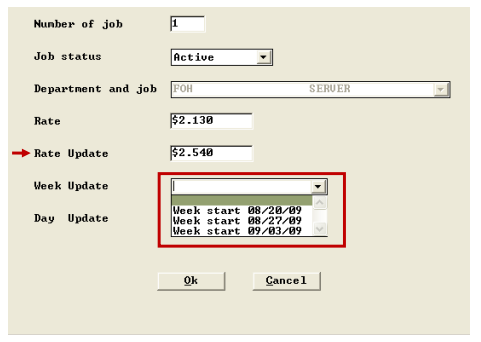
- Enter the new rate in the Rate Update field.
- Select the week start date from the drop-down list.
- Select OK.
- Select Exit.
Note: The updated rate displays with an asterisk (*) next to it, indicating the rate was changed.