
Add and Edit Users in the Shift4 Customer Hub
Description: Learn how to add and edit users, including their locations and permissions, in the Shift4 Customer Hub.
Add a User in the Shift4 Customer Hub
- Log in to the Customer Hub.
- Select Profile > Users from the left navigation menu.

- Select the + icon.

- Enter the details for the user's First Name, Last Name, and Email address.
- Toggle the Active option to the right.
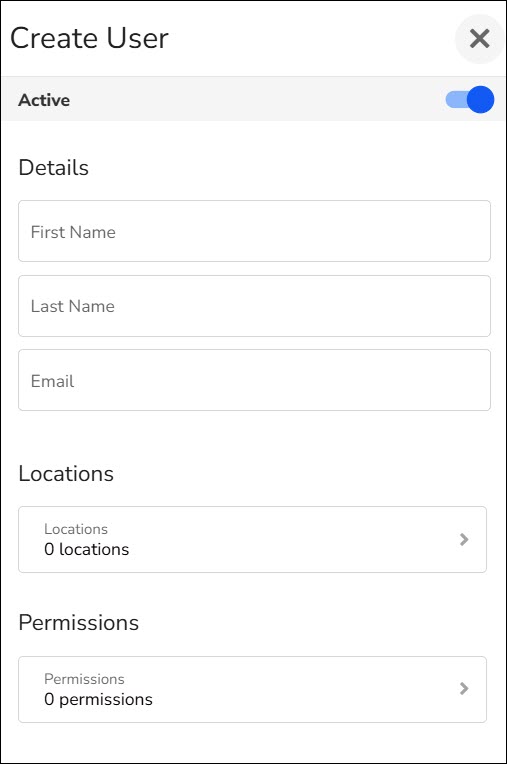
- Place a check in the box next to each location that this user has access to within the Customer Hub.

- Place a check in the box next to any permissions that you would like the user to have, or select a previously saved Permissions Template to apply those permissions instead.
Note: Select the arrow (>) to expand a selection and select the down-arrow (V) to close the group. To review all the permissions within the Shift4 Customer Hub, refer to the Shift4 Customer Hub Permissions Overview article.
- Select Update or Save As Template.
Note: You can save these permissions as a template so that you can quickly apply them to another user later. Select Save As Template to save the current permission settings for reuse. - Select Create when ready to add the user.
Edit a User in the Shift4 Customer Hub
- Log in to the Customer Hub.
- Select Profile > Users from the left navigation panel.
- Select the user you want to edit. The Edit User window opens.
- Update the user's First Name, Last Name, Email, locations, or permissions as needed.
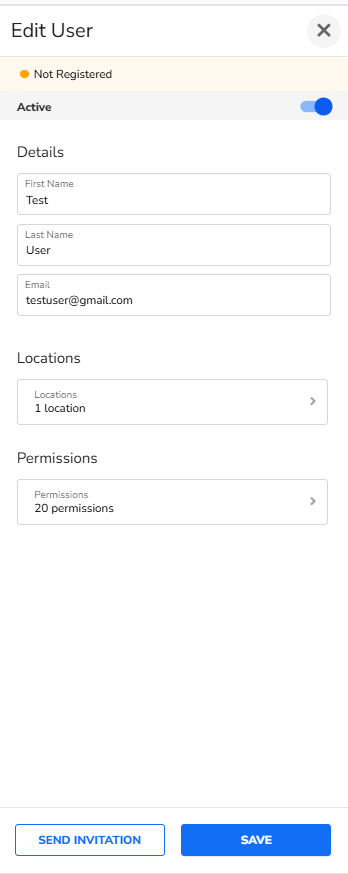
- Select Save.
Can You Clone a User's Permissions?
The Shift4 Customer Hub does not have a direct user-cloning feature. However, you can save a user's permissions as a template in step 8, then apply that template to a new user in step 7.