

View Monthly Statements in the Shift4 Customer Hub
Description: Learn how to view and download individual and consolidated monthly statements, and manage Statement Groups in the Shift4 Customer Hub.
Understand Monthly Statements in Shift4 Customer Hub
Monthly statements in the Customer Hub provide a breakdown of services and charges, including:
- Number of transactions processed
- Batch totals
- Associated fees
Statements are provided electronically and are available in the Customer Hub.
Monthly statements are typically available by the first business day of the month. Depending on data availability, processing can take up to two additional business days.
Note: Add notify@shift4 to your safe sender list to help prevent Shift4 statement emails from going to your spam folder.
For information about the details included on a statement, visit the Billing Statement Breakdown article.
View Individual Location Statements in Shift4 Customer Hub
View and download monthly statements for one or more individual locations from the Statements page in the Customer Hub.
- Log in to the Customer Hub.
- Go to Reporting > Statements.

- If you manage multiple locations, select the applicable location(s) from the Location dropdown, and select Confirm.
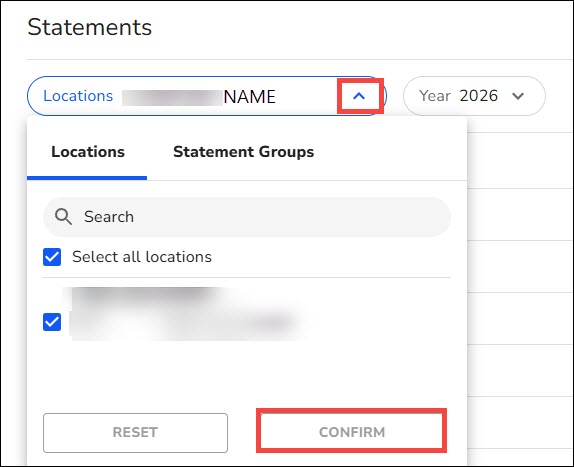
- Select the applicable Year.

- Select Download.
- Select PDF or Excel to download the statement(s).

Understand Consolidated Statements in Shift4 Customer Hub
Consolidated statements provide a single monthly view across selected locations.
A consolidated statement includes:
- An aggregated financial overview
- Side-by-side details for each location
- Faster, easier reconciliation
Consolidated statements:
- Are available in PDF and Excel formats
- Require a Statement Group
- Are generated at the beginning of each month based on the locations included in the Statement Group at that time
Manage Statement Groups in Shift4 Customer Hub
A Statement Group is a collection of locations, or MIDs, grouped together for consolidated statements.
Each location can belong to only one Statement Group.
Your ability to add, view, or manage locations in a Statement Group depends on your user permissions. To create, edit, or delete a Statement Group, you must be an Admin or have specific permissions to manage groups.
Access Statement Group Settings
You can access Statement Group settings in either of the following ways:
- From the Statement Page, select the Add/Edit Groups button.

- Go to Profile > Groups.

Create a Statement Group
Create a Statement Group before accessing a consolidated statement for a group of locations.
- Go to the Statement Group settings.
- Select the "+" button.
- Select Statement Group.

- Select the locations you want to include in the Statement Group.
Note: You can add only locations that are not already part of another Statement Group. All locations within a Statement Group must be from the same country.
Download a Consolidated Statement in Shift4 Customer Hub
Download a consolidated monthly statement for an existing Statement Group from the Statements page.
- Log in to the Customer Hub.
- Go to Reporting > Statements.

- From the Location filter, select a Statement Group.

- Select Confirm.
- Download the consolidated statement in PDF or Excel format.
For additional information, visit the Consolidated Statements FAQs.