
Set up Locations on Business Intelligence
Description: Learn how to add, upload, edit, or delete locations on Business Intelligence. Admin privileges are required for these actions.
Availability: United States, Canada, Spain, United Kingdom
Add a New Location
- Log in to Business Intelligence.
- Select the Settings icon in the upper-right corner of the window.
- Select Locations.

- Select the Add New Location.

- In the Add Location window, complete the required fields:
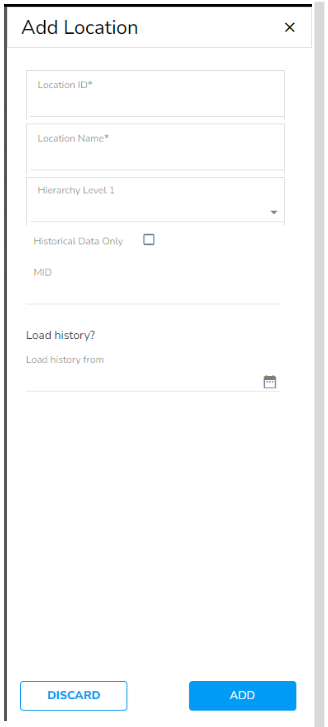
- Location ID: Enter a number between 1 and 9999. If you use store numbers, you can use them here, but they must be modified if they fall outside the range of 1-9999.
- Location Name: Enter the name you want the location to display as.
- Hierarchy Level 1: (Optional) Assign a hierarchy level if you use reporting hierarchies. For example, locations can be grouped under District Managers.
- Historical Data: Check this box if you only want access to historical data and do not want current polling enabled.
- MID: Enter the standard Shift4 MID, with or without leading zeros. Verify the MID is entered correctly.
- Load History: Enter a start date to load historical data into Business Intelligence or leave blank if you do not want to load historical data.
- Select Save to add the new location.
Upload Locations
In the Locations window, select the Upload Locations (csv file) button to upload multiple locations using a CSV file.

Important: The CSV file must have these columns in this order: MID, Location Name, and Location ID.
Edit a Location
In the Locations window, select the Edit link for the location you wish to update.

Update the information in the window that displays. Select the Update button to save your changes.
Delete a Location
In the Edit window for the location, select the Delete button to remove that location.
Select the Update button to save your changes.