
Description: Learn how data inheritance and overrides in the Enterprise hierarchy enable seamless data sharing across locations, with options for location-specific customization. Includes a detailed list of override-able fields by data type.
To watch more how-to videos, visit our video section.
Overview
Multi-Location Management uses a hierarchical data structure, allowing you to manage core menu configurations at the Enterprise level and share them across all locations. Locations can inherit this data as-is or apply custom overrides for fields where needed.
This article explains:
- How inheritance works
- How overrides are applied and managed
- Where overrides are visible
- How to filter and identify overrides
- Which fields are override-able by data type
Note: You must have the “Manage the menu” permission enabled to create or override data at any level.
How Inheritance Works
- Enterprise-level data (e.g., items, modifiers, discounts) is automatically inherited by all locations unless a local-level override exists.
- Changes made at the Enterprise level apply to all locations unless the specific field has been overridden at a location.
- Overrides allow you to tailor pricing, item behavior, and display for specific sites while still leveraging a shared menu structure.
What is an Override?
An override is a change made at the location level to a field that was originally inherited from a higher level in the hierarchy (Enterprise or Group).
- When a field is overridden, the location-specific value replaces the inherited value for that field only.
- All other fields in the same row continue to follow inherited defaults unless they are also overridden.
- Overridden fields are visually marked (for example, with a blue dot or a Reset option) to indicate customization.
Important: Even if a location sets a field to the same value as the inherited default, it is still considered an override until it is explicitly reset.
Note: To enable location-specific data creation or overrides, ensure location-level data and user permissions are configured. Visit the Configure Location-Level Menu Data and User Permissions article for details.
.png?revision=1)
Clear or Reset an Override
You can remove an override in two ways:
- From the Enterprise level (Top down): Select the field or row and select the Reset action to revert all locations back to the inherited default.
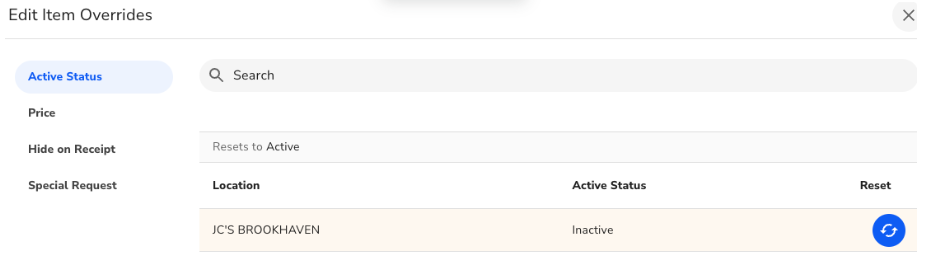.png?revision=1)
- From the Location level (Bottom up):
- Navigate to the location in the hierarchy and select the row containing the override.
- Use the
Reset icon to remove the override for that location.
Note: Editing a value to match the default does not automatically remove the override. The Reset action must be used.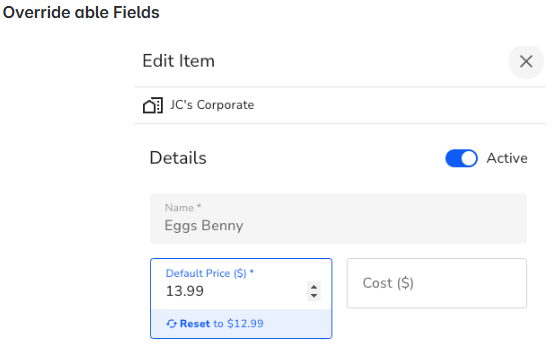.png?revision=1)
Creating Location-Level Data
- Locations can create independent (non-inherited) data when "Allow Local Data" is enabled under Security Settings.
- This data applies only to that location and is fully editable there.
- Use the hierarchy panel to select a specific location before creating new data so it is scoped correctly.
View, Filter, and Manage Overrides
Ownership and Hierarchy Context
Ownership filtering is based on the Current Level, which reflects the hierarchy context selected in the left side panel (Enterprise, Group, or Location).
- Current Level reflects the hierarchy context selected in the left side panel (Enterprise, Group, or Location).
- The data shown always corresponds to the level currently selected in the hierarchy.
Overrides Only Filter

The Overrides Only filter limits results to rows that contain overrides.
When viewing data at the Enterprise or Group level, rows display a numeric indicator showing how many locations have applied overrides.
- When viewing data at the Location level, rows with overrides created by that specific location are marked with a blue dot.
- This filter makes it easy to focus only on customized data without scanning inherited rows.
Top Down (Enterprise or Group View)
From a higher-level view:
- Each data row displays a count of how many locations have overrides applied.
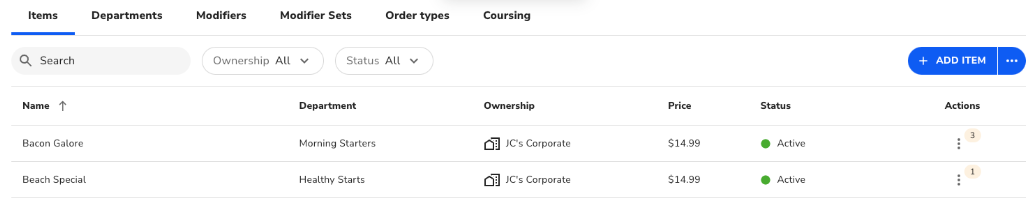
- Use the action menu
> Edit Item Overrides to:

- See which fields are overridden
- View which locations have overrides
- Compare override values vs. Enterprise defaults
- Reset overrides to inherited values
Bottom Up (Location View)
From the location-level view:
- Overridden fields are marked by a blue dot
in the Ownership column.
.png?revision=1)
- Selecting a row shows the override value and allows you to:
- View the override value
- Edit the field
- Reset the field to the inherited value
Note: Editing a field to match the inherited value does not remove the override. The Reset action must be used.
Summary of Location Overrides
The following lists show which attributes can be overridden at the location level by data type:
Department
Override-able Attributes:
- Active status
- Workstation Display Order
Item
Override-able Attributes:
- Active status
- Price
- Cost
- Revenue Class
- Favorite
- Hide on Receipt
- Special Request
- Default Qty
- Kitchen Print Name
- Workstation Display Order
- Add or Remove Modifier Sets
Modifiers & Modifier Sets
General Approach
- Specific attributes on modifiers and modifier sets can be overridden.
- Overrides are not supported for the mapping between modifier sets and modifiers.
- To change mapping behavior, create new modifier sets at the Enterprise, Group, or Location level.
- From the Item screen, locations can add or remove modifier sets as an override.
Modifier Override-able Attributes:
- Active status
- Kitchen Print Name
- Print Red/Bold
- Show Special Request When Ordering
- Printer Mapping
Modifier Sets Override-able Attributes:
- Active status
- Kitchen Name
- Print in Red or bold
- Print Modifier Set name with modifiers on the ticket
- Workstation Display Order
Nested Modifiers
No overrides are supported at this time.
Modifier Set Modifier Mapping
No overrides are supported at this time.
Modifier Set Item Mapping
Modifier sets can be added or removed from the Item screen.
Discounts
Override-able Attributes:
- Active status
- Item Mapping
- Workstation Display Order
- Discount Amt override: When location-level overrides are enabled for discounts, locations can override inherited percent or amount values.
Order Type
Override-able Attributes:
- Print Red/Bold
- Require Ticket Name
- Allow Custom Ticket Names
- Allow Customer Selection
Coursing
Override-able Attributes:
- Active Status
- Place Items on Hold
- Workstation Display Order
Tender Type
Override-able Attributes for Custom Types:
- Active status
- Require Customer
- Allow Tips
- Open Cash Drawer
- Allow Change
- Workstation Display Order
Tax
Override-able Attributes:
- Revenue Class Mapping
Revenue Class
Override-able Attributes:
- Tax Mapping
Surcharge
Override-able Attributes:
- Active status
Gratuity
Override-able Attributes:
- Active status
Revenue Center
No Overrides - Only Created at Tenant Level
Tip Sharing
Override-able Attributes:
- Active status
- Percent Given
- Based On