
Description: Learn how to manage location-specific data, overrides, and user access settings within the Multi-Location Management hierarchy, including options for granting location access levels and editing permissions.
To watch more how-to videos, visit our video section.
Overview
Security settings in Multi-Location Management determine who can access the Enterprise hierarchy, which locations they can manage, and whether they can create or override data. This guide explains how to configure location-level permissions and user access roles.
Location Settings (Data Creation & Overrides)
At the Enterprise level, you can define whether a location can create its own data or override Enterprise-level configurations.
To configure these options:
- Go to Enterprise > Locations.

- Select the location you want to update.
.png?revision=1)
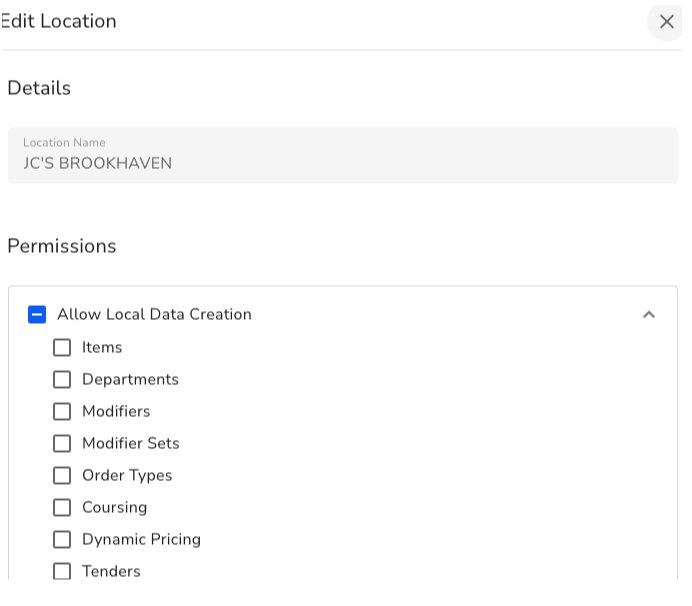
- Select the checkboxes for each applicable setting (e.g., Items, Modifiers, Discounts, etc.):
.png?revision=1)
| Setting | Description |
|---|---|
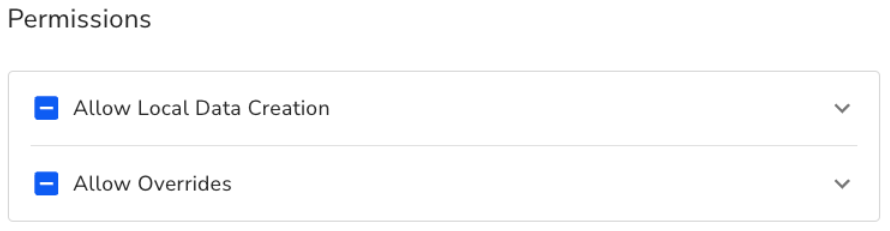
| Allow Local Data | Enables the location to create and fully edit menu data that applies only to that specific location. |
| Allow Overrides | Allows the location to override Enterprise-level settings for fields marked as override-able. |
Example: A location can override the price of an item inherited from Enterprise, while keeping other fields unchanged.
Publication History
Also found under Location Settings, the Publication History shows changes published to each location.
- Select a publication event to view the included changes.
- Use this view to track updates or troubleshoot menu changes at specific locations.
.png?revision=1)
.png?revision=1)
.png?revision=1)
Manage Users
To manage Enterprise and location access for users:
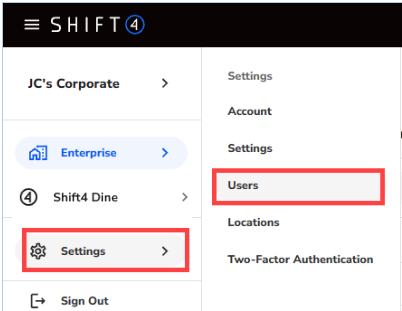
- Go to Enterprise > Settings > Users.
.png?revision=1)
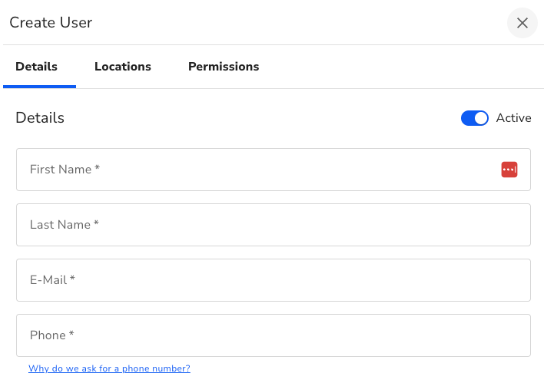
- Select an existing user or choose + Add User to create a new one.
.png?revision=1)
Set Access Level
.png?revision=1)
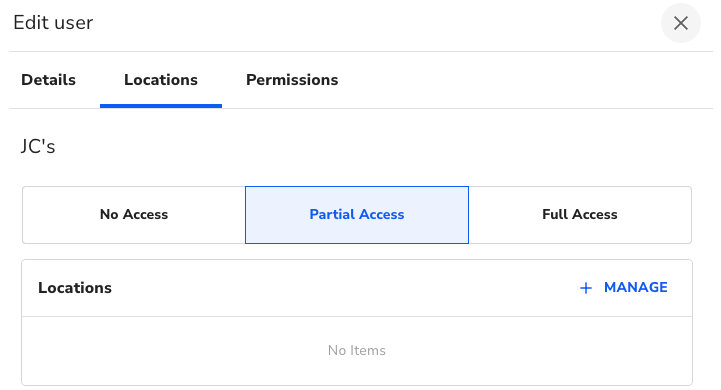
Choose how much of the Enterprise hierarchy the user can access:
.png?revision=1)
- No Access: The user cannot access the Enterprise or assigned locations (they’re hidden from the menu).
- Partial Access: The user can access a selected set of locations (groups may also be supported in the future).
- Full Access: The user has access to all locations and the full Enterprise view.
Set Permissions
.png?revision=1)
Permissions define what actions the user can take at their access level. Assign permissions relevant to the user's role.
Required Permission: Manage the Menu
This permission is required to create or override menu data and provides access to the following:
- Menu, Payments, and Accounting sections in Multi-Location Management
- Creating/editing items, modifiers, discounts, and departments
- Applying or clearing overrides at the location level
Note: Only assign this permission to users responsible for menu configuration to avoid unintended changes.
Visit the Create and Manage Menu Items article for more details on permissions and how they affect menu data creation.
Tax Inheritance & Overrides
Tax settings follow the same inheritance and override logic as other menu data types.
To configure or override tax rates at a location, visit the Configure Tax Settings article.