
Change Job Permissions/Settings on Shift4 Dine
Description: Learn how to change permissions for a job on Shift4 Dine.
Shift4 Dine v.1.117.7 and above
Note: You will require manager permissions to complete this process.
The Settings field on Jobs allows users to set permissions on the job rather than for individual users.
- Navigate to Manager > Settings > Users > Jobs.
.png?revision=1)
- Select the job from the list on the left side of the screen you wish to change the permissions for.
.png?revision=1)
- Tap within the Settings box in the lower right.
.png?revision=1)
- Highlight the desired available setting from the left side (Not Allowed Settings), which moves it to the right side (Allowed Settings). You can also use the search field to find a specific setting or use the arrow buttons to scroll through the settings.
- If you are unsure of a setting, select the Definition button.
.png?revision=1)
- If you are unsure of a setting, select the Definition button.
- Once complete, tap OK to commit the changes.
- Tap Save to complete the change.
Shift4 Dine v1.117.6 and below
To watch more how-to videos, visit our video section.
Note: You will require manager permissions to complete this process.
The Settings field on Jobs allows users to set permissions on the job rather than for individual users.
- Navigate to Manager > Settings > Users > Jobs.
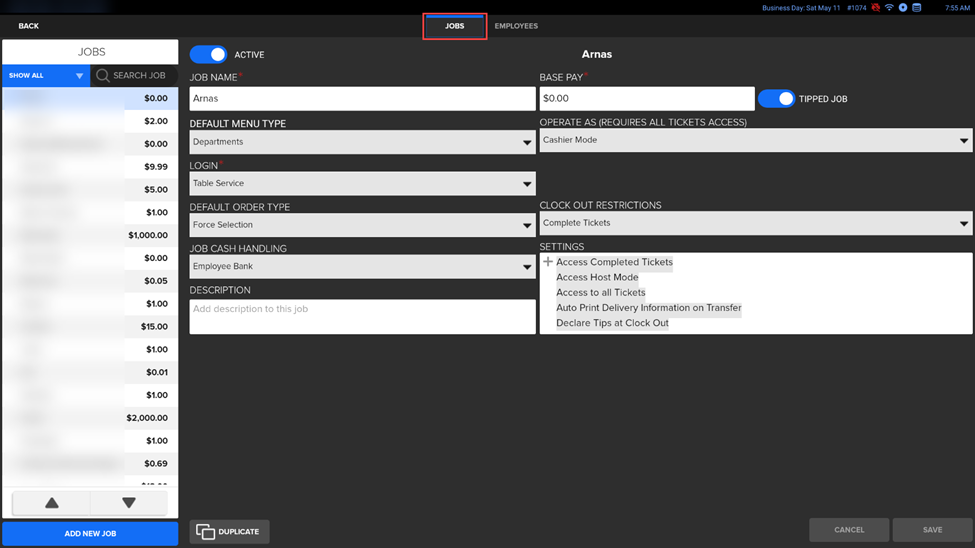.png?revision=1)
- Select the job from the list on the left side of the screen you wish to change the permissions for.
.png?revision=1)
- Tap within the Settings box in the lower right.
.png?revision=1)
- Highlight the desired available setting from the left side (Not Allowed Settings), which moves it to the right side (Allowed Settings). You can also use the search field to find a specific setting or use the arrow buttons to scroll through the settings.
- If you are unsure of a setting, select the Definition button.
.png?revision=1)
- If you are unsure of a setting, select the Definition button.
- Once complete, tap OK to commit the changes.
- Tap Save to complete the change.