
Description: You can showcase personalized customer testimonials on your website to build trust, encourage repeat visits, and drive more sales. The Testimonials section allows you to highlight customer feedback in a dynamic, theme-consistent format.
To add and manage testimonials:
- Within Website Builder, select the Edit Website button to access the Content Editing feature.

- Select Testimonials.

- Use the Hide Section toggle to control whether testimonials are displayed on your site.
- Use the Title textbox to name the section (e.g., "What Our Customers Say").

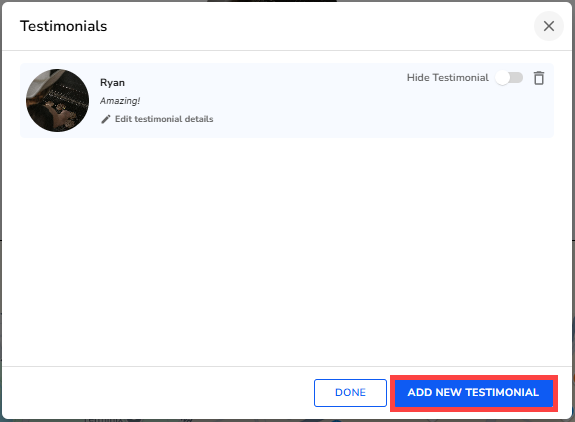
- Select Manage Testimonials.

- Select Add New Testimonial.
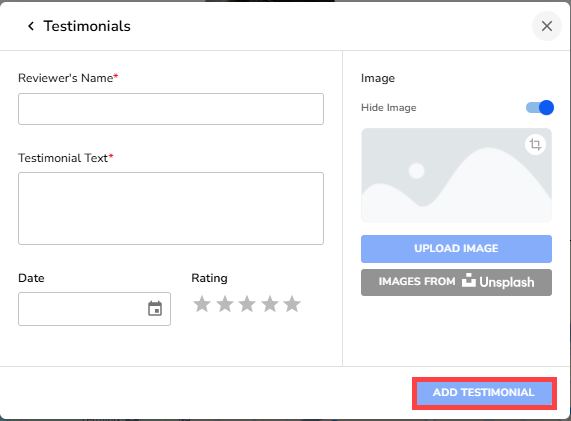
- Enter the required Reviewer's Name and Testimonial Text. Optionally, you can select a Date and Rating.
- Use the image toggle to choose whether to display an image.
- You can select an image from the Unsplash repository or upload your own using the "Upload Image" button.
- Select Add Testimonial.
- Continue adding testimonials as needed, or select Done.
- To edit an existing testimonial, select Edit testimonial details. To delete one, select the trash can icon.

The testimonial is displayed on your site as follows:
