
Reporting Overview for Shift4 Duo
Description: Learn more about Shift4 reporting.
Availability: United States, Canada, United Kingdom
United States/Canada
Hospitality
When a payment is taken using the Shift4 app, the Hospitality software records the sale with a payment type called External.


Note: The tips taken in the Shift4 app are included in the server's total tips for the night.
This is the payment type that appears on the End of Day report (Daily report) for individual servers and the entire business, as well as the RFO and other financial reports on the POS. This is a placeholder tender type that has very little to do with actual processing; it just marks a payment that has been taken on the POS.
Shift4 Duo
Because Shift4 Duo is just an extension of the Customer Hub, when a payment is taken using the Shift4 Duo app, the reporting is a little more detailed on the POS.
.png?revision=1)
Note: The tips taken in the Shift4 Duo app are included in the server's total tips for the night.
Payments taken using the Shift4 Duo app are marked with a placeholder tender type on the POS system. Unlike the placeholder tender type of Hospitality, the placeholder shows more of the card information on the POS.
Shift4 Customer Hub
Customer Hub is the main place to find any reporting related to sales or activity on the Shift4 Duo. Under the Reporting tab in the Customer Hub, you can find all you need to track down a transaction or sales specifically related to Shift4 Duo.
- Select Reporting > Reports from the left navigation menu.
.png?revision=1)
- Select Shift4 Duo from the dropdown.

- Choose a report to run from the dropdown.

- Select a time frame from the calendar in the 'Select a Period' dropdown.

- Select Generate to run the report.

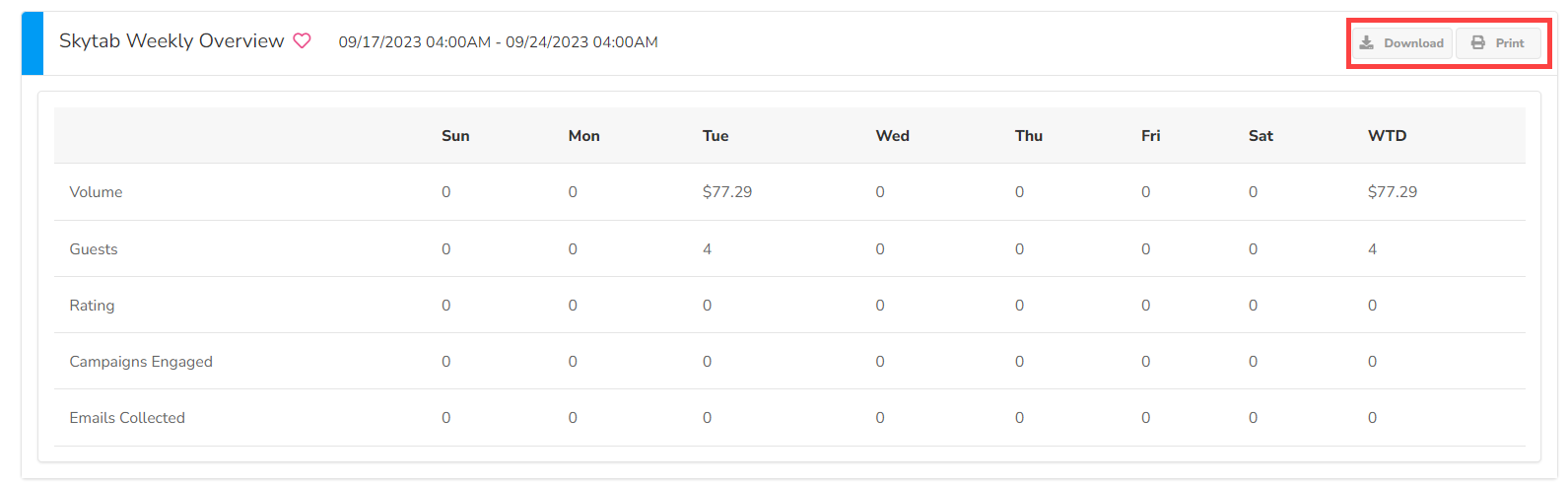
- The report is displayed on the screen. You can choose to "Download" or "Print" it.
Transaction Manager
For any merchant using the Shift4 Gateway, an easy identifier for Shift4 Dine transactions is that they all process under TID 0098. This is an easy way to identify Shift4 Dine transactions and separate them from transactions run on the POS system.
Important: For anyone not on the Gateway (meaning Shift4 Dine POS and anyone using the BroadPOS TransIT app), the TID is the same as the POS system.
On Transaction Manager, any transaction run on the A930 Device tends to have a clerk ID of 00000.

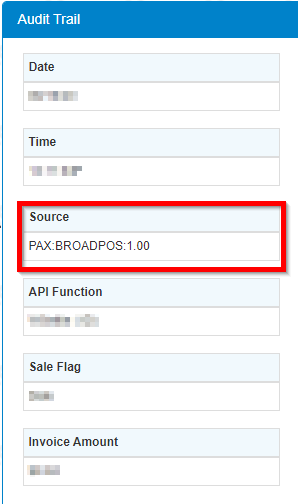
When you open up those transactions, this is further confirmed by looking at the "Source" field in the Audit Trail of the transaction.
United Kingdom
Shift4 Duo
Because Shift4 Duo is just an extension of the Customer Hub, when a payment is taken using the Shift4 Duo app, the reporting is a little more detailed on the POS system.
Note: The tips taken in the Shift4 Duo app are included in the server's total tips for the night.
Payments taken using the Shift4 Duo app are marked with a placeholder tender type on the POS system. Unlike the placeholder tender type of Hospitality, the placeholder shows more of the card information on the POS.
Shift4 Customer Hub
Customer Hub is the main place to find any reporting related to sales or activity on the Shift4 Duo app. Under the Reporting tab in the Customer Hub, you can find all you need to track down a transaction or sales specifically related to Shift4 Duo.
- Select Reporting > Reports from the left navigation menu.
- Select Shift4 Duo from the dropdown.
- Choose a report to run from the dropdown.
- Select a time frame from the calendar in the Select a Period dropdown.
- Select Generate to run the report.
- The report is displayed on the screen. You can choose to "Download" or "Print" it.