
Configure Sales Tax on Shift4 One
Description: Learn how to enable and configure sales tax in Shift4 One.
To enable and configure sales tax:
- From the main Shift One screen, select the hamburger menu (3 horizontal lines).

- Select Taxes.
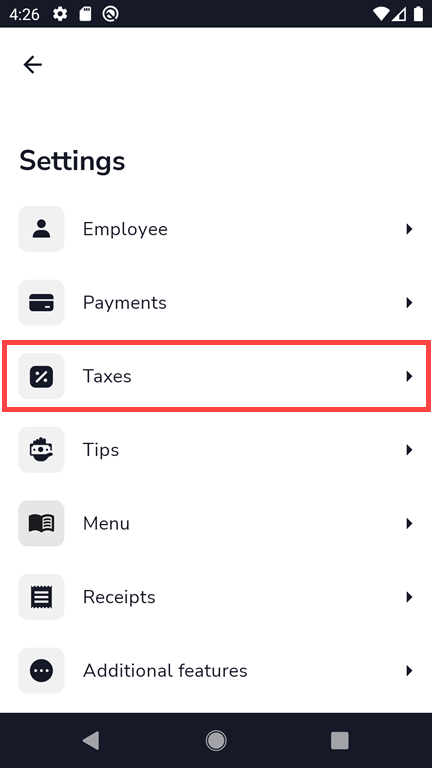
- Select Create New to create a new tax item and set the rules for it.
.png?revision=1)
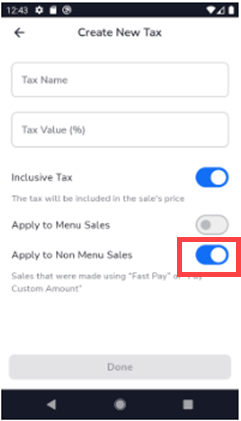
- Enter a Tax Name, Tax Value (%), and select the rules:
- Inclusive Tax: If you select Inclusive Tax and Apply to Non Menu Sales, the tax will be included in the price, and the amount will not change, but the taxes will be visible on the receipt.

.png?revision=1)
- Non-Inclusive Tax: If you do not select Inclusive Tax and only leave Apply to Non Menu Sales, sales tax will be added to the item price and visible on the payment screen and receipt.

.png?revision=1)
- Inclusive Tax: If you select Inclusive Tax and Apply to Non Menu Sales, the tax will be included in the price, and the amount will not change, but the taxes will be visible on the receipt.