
Enable Multi Factor Authentication for Standard Users
Description: Learn to enable Multi-Factor Authentication (MFA) for standard users.
Enable Multi-Factor Authentication:
- Log in to Transaction Manager Account Administrator.

- Navigate to the Settings drop-down and select Security Settings.
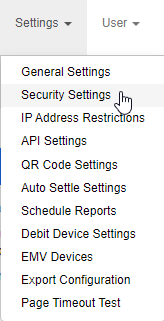
- On the User Security page, scroll down to the bottom to locate Require Multifactor Authentication, and set the drop-down menu to Required for Non-Administrators. Select Apply to save this setting.

- Once this is completed, users will see a notification to set up MFA when they sign in. Once they close this notification, they will then select Add to begin the pairing process.


- The user will follow the on-screen instructions to complete the authenticator setup. Please note that the Shift4 Authenticator app no longer exists, however any authenticator app (Okta, etc.) will work for this step.
