
Disable USB Sleep Settings
Description: Learn how to disable USB Sleep Settings so USB Ports are not turned off when the computer goes to sleep, or the USB Port is left unused for a specific amount of time.
The USB Sleep settings can cause various connection issues for USB-connected PIN Pad devices.
Windows 10:
- Navigate to Control Panel > Hardware and Sound > Power Options > Edit Power Plan.

2. Select Restore default settings for this plan.

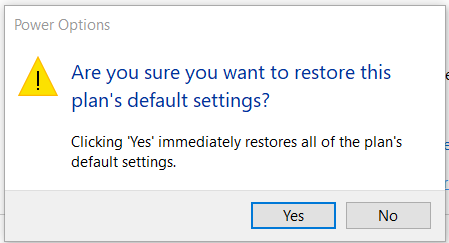
3. A message displays to confirm if you are sure you want to restore the default settings. Select Yes.
4. Select Change advanced power settings.

5. Expand the USB Settings drop-down.
6. Expand the USB selective suspend setting drop-down.

7. Select Disabled and Apply/OK the settings.
Below Windows 10:
- Navigate to Control Panel > Hardware > Power Options > Edit Plan Settings.
- Select Restore default settings for this plan.
- Expand the USB Settings drop-down.
- Expand the USB selective suspend setting drop-down.
- Select Disabled and Apply/OK the settings.
.png?revision=1)