
PreOrder Cutoff in Suites for Appetize
Description: Learn how to create PreOrder Cutoff Template, Event Override and enable PreOrder Cutoff Access.
To create a PreOrder Cutoff Template:
The 7-day calendar template automatically inherits the PreOrder cutoff set in Suites Settings. That field has been replaced by this module.
- In Connect select Suites > PreOrder Cutoff.
- Select the blue editable weekday and time.
- Set the PreOrder cutoff by weekday and time for events on the selected day.
- The cutoff day set will be the weekday prior.
- Select the pencil to edit the cutoff details.
- Set the Display cutoff details on PreOrder Portal.
- Yes – The PreOrder Portal will display the cutoff date and time on the event.
- No – PreOrder cutoff details will not display on the PreOrder Portal.
- Set the Cutoff details.
- Not set – Defaults to Order by with the cutoff date and time.
- Entered text – Displays entered text with the cutoff date and time.
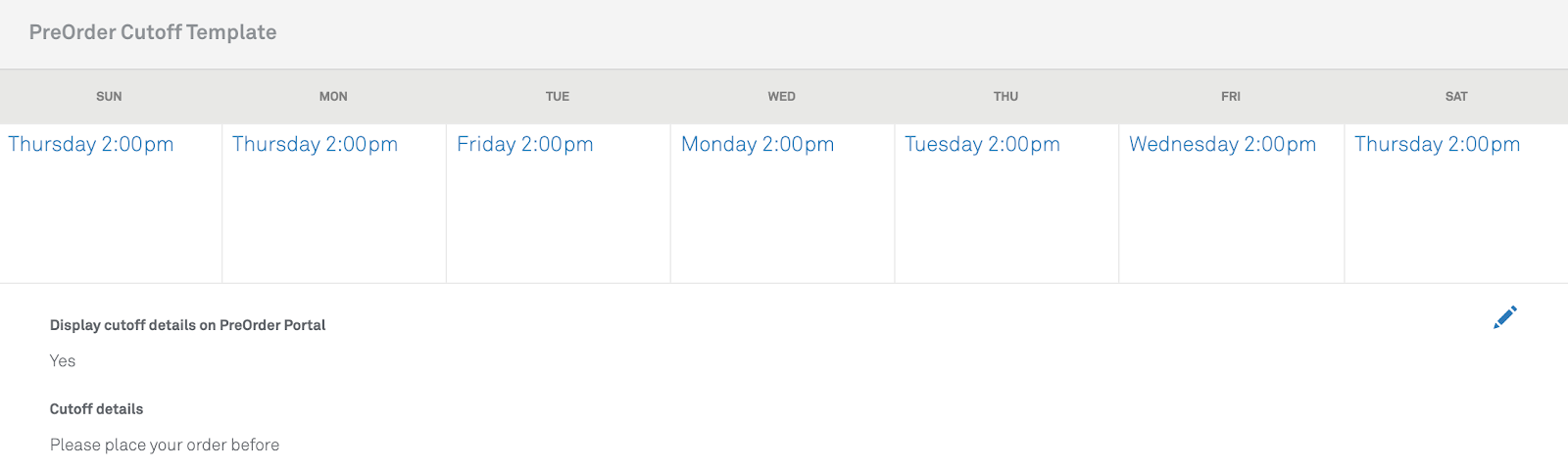.png?revision=1)
To create a PreOrder Cutoff Event Override:
- In Connect select Events > Calendar and select the event you want to modify.
- When a Suites Event Type is assigned to an event, the PreOrder cutoff template information displays.
- To override the PreOrder cutoff simply click the weekday then the time field.
- Select Save.
.png?revision=1)
PreOrder Cutoff Access
To enable PreOrder Cutoff access for a Connect user:
- In Connect select Options and then select Connect Roles.
- Select the Connect role that needs to be updated.
- Scroll down to the Suites section.
- Edit PreOrder Cutoff Template to Yes.
- Select Save.
