
Print Standsheets in Appetize
Description: Discover how to access and export Standsheets in Connect through the Events tab for comprehensive event management.
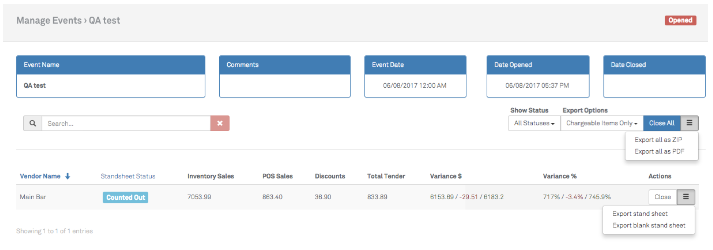
- To find Standsheets in Connect, go to the Events tab and select Standsheets. A list of Vendors that are in operation for the current event will be displayed.
- To export all Standsheets, select the hamburger icon (three lines) in the upper right above the list. The export options are explained below.
- To export a single location's Standsheet, select the hamburger icon (three lines) to the right of the Vendor name.
.png?revision=1)
Export Options
- Export Standsheet: This will export the Standsheet with the last ending counts and any transfers in/out for an expected count-in that the stands can verify is correct.
- Export blank Standsheet: This would be a blank Standsheet for employees to count from scratch. This option is typically used at the start of implementing the inventory system or for monthly end inventory.
- Export all as PDF: This will provide an export of all the active Standsheets for the event combined into a single PDF.
- Export all as ZIP: This will provide an export of all the active Standsheets as separate PDFs for the event as a zip file.
Note: Windows users, please use WinZip to extract these files properly.
An example of a Standsheet exported as PDF:
.png?revision=1)