
Void Groups in Connect for Appetize
Description: Void Groups allow users to select and track the reason why an order is refunded or voided (for example, Manager Void, Exchange, Waste, etc.). Review the steps below to learn how to create, edit, and add void groups.
Create a New Void Group
- Log in to Connect and select Options in the left side menu.
- Select Void Group from the menu.
- Select Add Void Group in the top right corner.
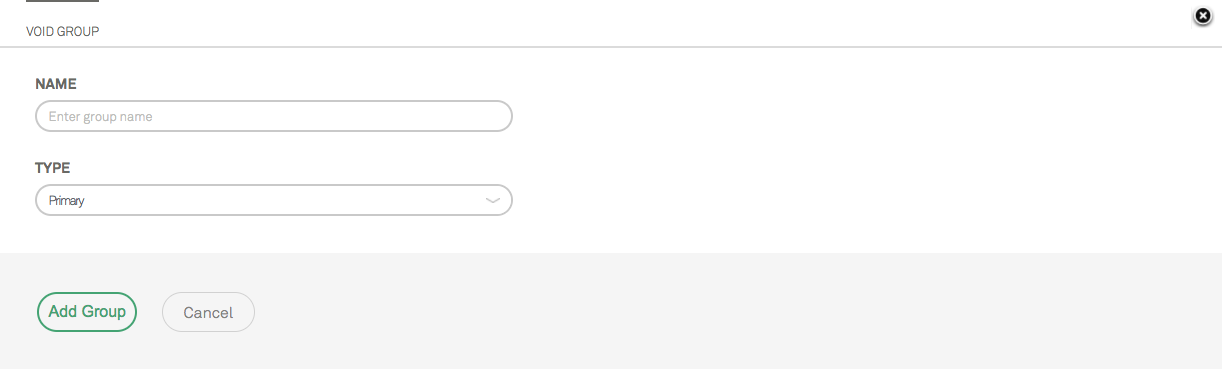
- A window will appear to fill in the name of the new Void Group as well as the type.
Add Voids to a Void Group
- Once the above steps have been completed, select a specific Void Group to open up the options.
- Select Add Void
- Enter a name.
- Select Save Void.

Edit Voids to a Void Group
- Select Edit to update a Void.
- Select Delete to remove a Void.

