
Configure Donations in Hospitality
Description: Learn how to configure and use Donations in Harbortouch Hospitality below.
The Donations feature can be found by navigating to Manager > Advanced > Donations.
.png?revision=1)
The system can only have one active donation at any given time. The system is designed to either prompt for a donation or not. Therefore, only one donation can be logged at a time using this built-in feature.
To set up the Donation option, go to Manager > Advanced > Donations.
- Click New to add a new Donation.
- Click Edit to edit an existing Donation.
.png?revision=1)
Adding a Donation to a Ticket
It is important to know that once a donation is active, every single ticket will prompt the user if they wish to make a donation or not. There are no additional Donation settings, so you must either toggle the setting "On" or "Off."
- Ring in a ticket with the items.
- When you select Pay, a popup will appear asking the customer if they want to Donate to the currently active Donation or not.
.png?revision=1)
How the system calculates the Donation
- The customer cannot define the Donation amount.
- The amount for the Donation is the difference between the change of the Amount Due and the nearest next whole dollar amount.
- Example: Amount Due $5.43
- Donation Amount = $0.57
- Total Amount Due with Donation = $6.00
- Example: Amount Due $5.43
Paying a Ticket with a Donation or Removing a Donation
If the customer has opted to make the Donation (using the above example of $0.57), the Pay screen will indicate a value of the Amount Due + Donation ($6.00).
If the customer wishes to cancel their Donation amount, you can select Remove Donation, which is located directly next to Close Ticket shown above.
Otherwise, proceed with the Payment process as usual.
.png?revision=1)
Enabling the Donations on Reporting
By default, the Daily Report will not account for the Donation sales. If we do not turn this on, this will never show up on the report causing a gap in sales. Therefore, we must enable this on the Daily Strip for proper recording.
Enable Donation Reporting on the Daily Financial Report
Navigate to Manager > System > Reporting > Customize Site Strips.
.png?revision=1)
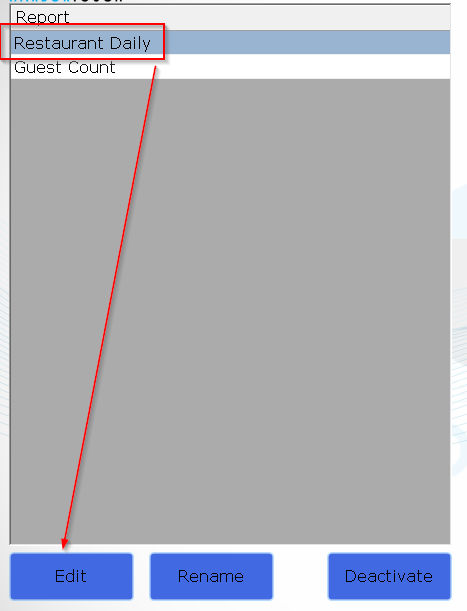
Select Restaurant Daily then press Edit.
.png?revision=1)
From here, you need to move the Donations option(s) from the "Sections not in this Strip Report" (left) to the "Sections in this Strip Report" (right) in order for the Daily to display the Donation values.
- You may reorganize the headers in whichever order you wish for them to appear.
- Press OK to save your changes.
.png?revision=1)
Enable Donation Reporting on the Individual User Reports
Navigate to Manager > System > Reporting > Customize User Strips.
.png?revision=1)
From here, you need to move the Donations option from the "Sections not in the User Strip Report" (left) to the "Sections in the User Strip Report" (right) in order for the User Reports to display the Donation values.
- You may reorganize the headers in whichever order you wish for them to appear.
- Press OK to save your changes.
.png?revision=1)
Viewing the Donations on Reporting
In Step 4, you set up the ability for users to see the Donation Values on the Financial/Daily Report and Individual User Report. Navigate to Manager > Daily, then click one of the following options:
- Financial/Daily Report - Donations
- Individual/Selected User Report - Donations
Donations on the Daily/Financial Overview
The Cash Deposit section now shows the Donation amount as shown to the right:
.png?revision=1)
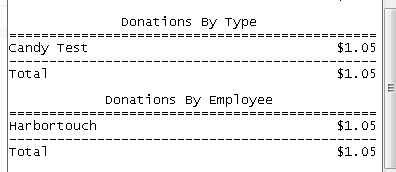
We added two segments to the report breaking down Donations by Type and by User, which are shown to the right:
.png?revision=1)
Donations on the Individual User Report
We added a new segment that shows the Donations by Type for the individual user:
.png?revision=1)