
Enter Physical Inventory Counts in POSitouch
Description: Learn how to print an inventory worksheet, enter new physical inventory counts, and edit existing counts in POSitouch.
Overview: Theoretical vs. Physical Inventory {#overview}
Once ingredient records and recipes are entered, POSitouch can track theoretical usage — usage calculated from sales, based on the recipes entered.
POSitouch's inventory program is built around physical inventory. Physical inventory reflects actual usage and is tracked through:
- Physical counts entered into POSitouch
- All transactions, including purchases, waste, transfers, and production
Theoretical usage and actual usage are compared to display positive or negative variances. Without physical inventory, variances cannot be monitored.
Print an Inventory Worksheet {#print-worksheet}
Note: This process uses the inventory worksheet layout created during initial setup. Organize the worksheet by grouping items logically (for example, grouping all freezer items together) to make counting easier.
- Go to the Inventory section.
- Select Reports.

3. Select Print by Inventory Type or select specific pages to print.
- If printing by inventory type, select the drop-down list and choose the inventory type, or enter specific page numbers.
- Select OK to print. If no specific type or pages are selected, all pages print.

The printed worksheet includes:
- Fillable fields to record the date and time of the count

- Each ingredient listed by description

- The inventory unit of measure and cost per unit for each ingredient

- A blank field next to each ingredient for entering the counted value
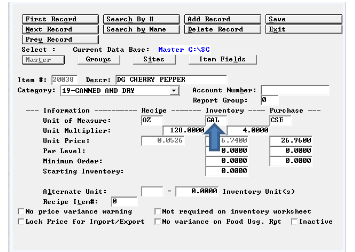
Note: The inventory unit of measure is set within each ingredient record during initial ingredient setup.
Complete a Physical Count {#complete-count}
Physically count each ingredient listed on the worksheet and record the counted value. How often counts are completed varies by business — some locations count all ingredients monthly or weekly, while others count daily or use a combination of schedules.
Important: If only a limited set of ingredients is counted (for example, five critical items daily), create a separate worksheet page for those items. If a full inventory type page is used but only some ingredients are counted, POSitouch records the uncounted ingredients as a zero count. This causes inaccurate variances the next time that ingredient is counted, because the system treats the starting count as zero instead of the actual last known value
Enter a New Inventory Count {#enter-count}
Once counting is complete, enter the values into POSitouch.
- Go to the Inventory section.

2. Select Enter Inventory.
3. Select Enter New Inventory.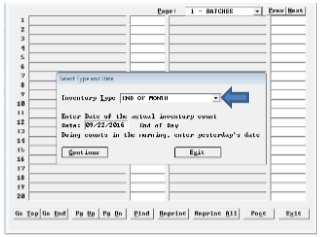
- Select the drop-down list and choose the inventory type. This type is linked to the corresponding inventory worksheet pages.
- Enter the count date.
Important: The count date must reflect an end-of-day count and correlates the physical count to sales for that day. Entering the wrong date skews the variance between actual and theoretical usage. For example, if inventory is counted before the start of business on September 22, enter the date as September 21. Even though the count was physically performed on the 22nd, using the 21st correctly aligns the count with the prior day's sales.
- Select Continue.

- Use the drop-down list or the Next/Previous buttons to navigate between pages.

- On each page, enter the count value for each ingredient. The count page matches the printed inventory worksheet, making it easy to follow along.
- After entering a value, select Enter on the keyboard to move to the next ingredient.

- Use the buttons at the bottom of the page to page up or down.

11. Once a page is complete, select Post to save it. Continue to the next page and repeat.
Important: Each page must be posted individually to save the count values.
Edit an Existing Inventory Count {#edit-count}
If changes are needed after a count has been posted:
- Go to the Inventory section.

2. Select Enter Inventory.
3. Select Edit Existing Inventory.
- Select the inventory type and the date of the count from the drop-down lists.

To change only the date:
- Select Edit Date.
- Change the date and select Save.

To change count values:
- Select Continue. The count sheet opens with the existing count values.

2. Select the value to change and enter the new value.
3. Select Post to save the changes.
Note: Inventory types cannot be changed on existing counts. If the wrong inventory type is selected and posted, contact Shift4 Support to override the file.