
Set a Prep Time Schedule on Delivery Management
Description: Learn how to create a prep time schedule that automatically adjusts your prep times on specific days and during busy or slow periods throughout the week on Delivery Management.
Important: Delivery Management is not generally available to merchants in the United States. If you're a US merchant looking for delivery solutions, explore the delivery integrations available in the Marketplace.
Set a Prep Time Schedule
- Log in to the Shift4 Dine Customer Hub and select Delivery Management.

- From the Orders page, select Edit.

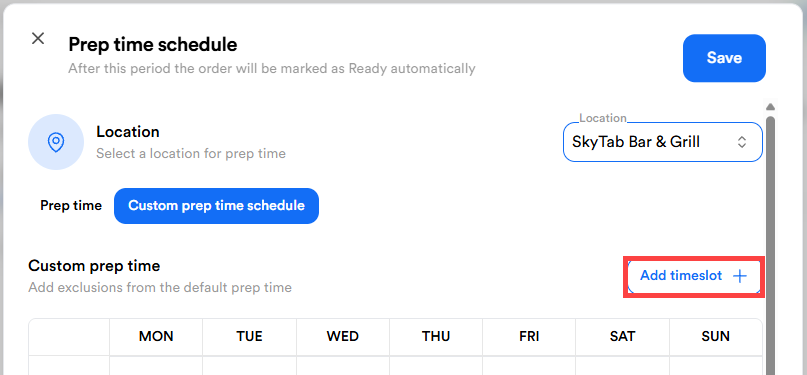
- Select Custom prep time schedule.

- Select Add timeslot.
- Select all days you want included in the adjusted prep time.

- Set the start and end time for when the custom prep time should apply.

- Adjust your prep time by increasing or decreasing it to the desired value for the selected days and times.
- Select Save.
You should now see your scheduled prep time displayed on the calendar.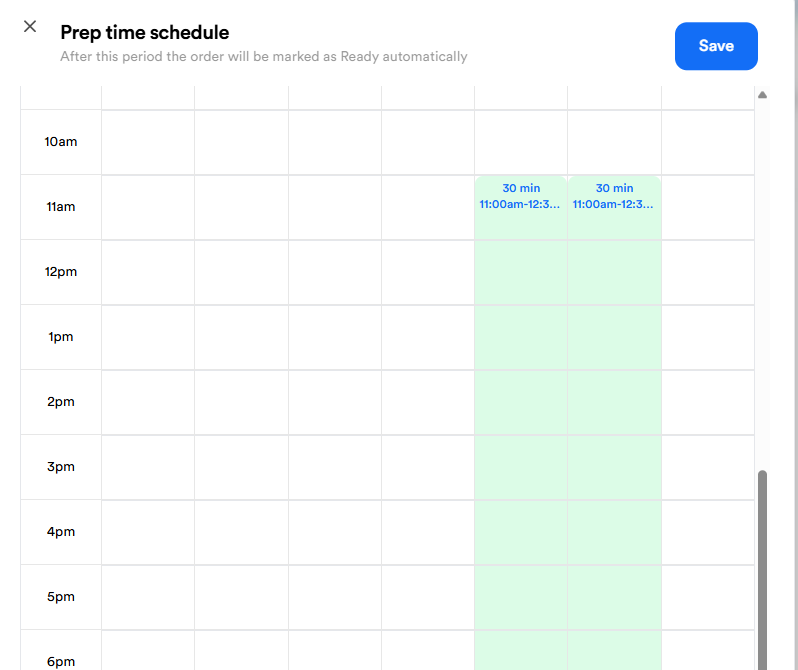.png?revision=1)
Note: Your prep time will automatically update based on the schedule you created.