
Ticket Functions Overview on Handheld
Description: Learn about essential ticket actions on Handheld, including how to add or remove guests, apply gratuities and discounts, and print tickets. These actions help streamline service, track individual guest orders, and manage payments more efficiently.
Availability: United States, Canada
Add or Remove Guests
Use this feature to manage the number of guests on a ticket. Grouping items by guest helps streamline service and makes it easier to split checks or track who is paying.
Add a Guest to a Ticket
- Log in to Handheld and open a ticket.
- Tap the kebab menu (3 vertical dots) to open the menu.
- Tap the + (plus) symbol next to Guest to increase the number of guests.

- Return to the ticket.
- Tap a guest to begin adding items to their seat.

Remove a Guest From a Ticket
- Tap the kebab menu (3 vertical dots) to open the menu.
- Tap the - (minus) symbol next to Guest to decrease the number of guests.

- Return to the ticket.
Add a Gratuity to a Ticket
Add tips or service charges to the ticket using preset gratuity options.
- Tap the kebab menu (3 vertical dots) to open the menu.
- Tap Gratuities.

- Select a gratuity from the list of pre-programmed options.

- Tap Ok to apply the gratuity to the ticket.
Apply a Discount to a Ticket
Apply a discount to individual items or the entire ticket.
Using Pre-programmed discounts:
- Tap the kebab menu (3 vertical dots) to open the menu.
- Tap Discounts.

- Select one or more discounts from the list of pre-programmed options.

- Tap Ok.
- If prompted, tap a reason for the discount.

- Tap Ok to apply the discount(s) to the ticket.
Using Open Discounts:
- Tap the kebab menu (3 vertical dots) to open the menu.
- Tap Discounts.
- Tap Open Discount.

- Tap on the % or dollar symbol to select the type of discount.
- Use the number pad to enter an amount, such as the price of a modifier that you want to make free, or use the preset open discount buttons.

- Tap Ok.
- If prompted, tap a reason for the discount.
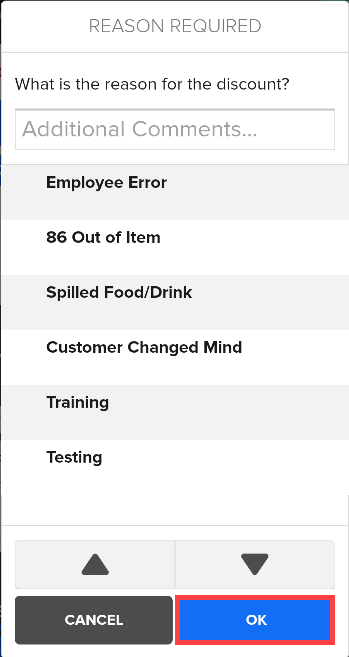
- Tap Ok to apply the discount(s) to the ticket.
Print a Ticket
Print a customer-facing copy of the ticket or receipt.
- The ticket is printed automatically when you select a Send option after entering an order.
Reprint a ticket:
- Open the ticket.
- Tap the Print (printer) icon.
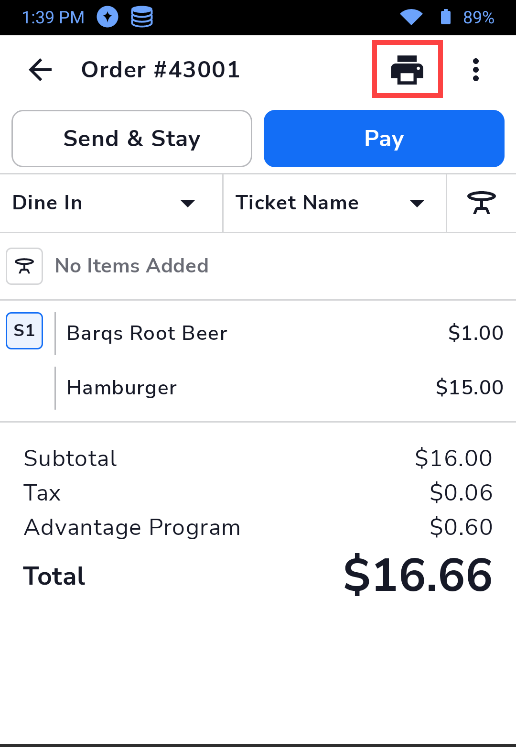
The ticket prints at the station's assigned printer.
Add Ticket Special Request
Visit Add a Ticket Special Request for details.
What's Next?
If you haven't created a ticket yet, visit Create a New Ticket for initial setup steps. Once your ticket is ready, complete your sale by following the Payment process.