
Configure Kiosk Order Flows
Description: Order Flows define how customers place orders on a kiosk and how those orders map into the Shift4 Dine workstation. Each flow (e.g., "For Here," "To Go") controls ticket mapping, customer questions, messages, tips, and restrictions.
Availability: United States, Ireland, Spain, United Kingdom
Access
- Go to Kiosk or in the Shift4 Dine Customer Hub, go to Marketplace > Kiosk > Manage.
- Select Order Flows from the left menu.

Create or Edit an Order Flow
To begin, select Create New Order Flow (or select an existing flow).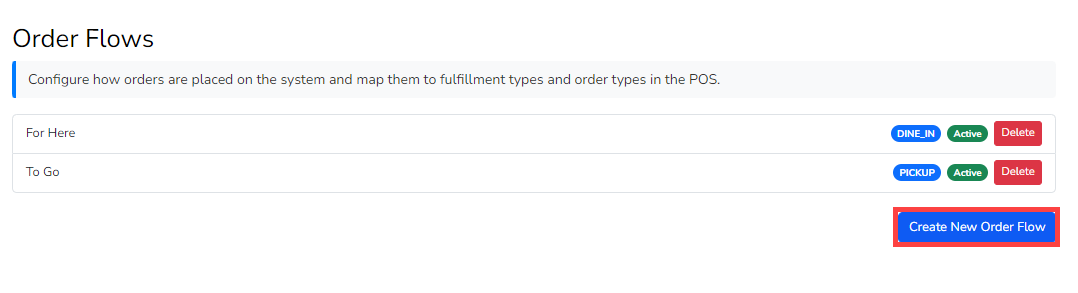
Once completed, configure the following:
General Settings
- Active — Toggle the flow on/off.
- Shift4 Dine Order Type — Map to a Shift4 Dine order type (Pickup, Dine In, etc.).
- Only order types with “Require Ticket Name” and “Require Customer” disabled in Shift4 Dine appear here.
- Use Refresh if changes were just made in Shift4 Dine.
- Display Name — Label shown on the kiosk.
- Icon — Select a visual icon.
Questions
- Add custom questions (e.g., What is your phone number?).
- One question can be marked as Ticket Name, so staff can quickly find orders in the Workstation.
Messages
- Add informational messages.
- Banners: Always visible at the top of the menu.
- Dialogs: Require customer dismissal.
Payment Settings
- Toggle Prompt for Tip if tips should be collected.
Order Restrictions
- Maximum Items Per Order — Set a limit or leave blank/0 for no restriction.
- Use Clear Restriction to remove a limit.
