

Create and Manage Menu Items in Location Management
Description: Learn how to create menu items in Location Management. See the Multi-Location section below to learn about item inheritance and overrides, and promote location-level items to the Enterprise when they're ready to be shared across multiple locations.
To watch more how-to videos, visit our video section.
Note: This functionality is available both from the Customer Hub and the POS starting with release 1.129.
Create an Item
To create an item:
- In Location Management, navigate to Shift4 Dine > Menu > Items.

- Select + Add Item.

- On the Add Item screen, enter the required fields: Name, Item Type, Default Price, Department, and Revenue Class. You can also optionally:
- Select a color
- Mark as a favorite
- Select advanced options
- Add modifier sets
- Make the item available for online ordering
- Add taxes
- Add display groups
- Add printer templates
- Set tracking
- Enable weight options
- Select coursing

- On the Add Item screen, enter the required fields: Name, Item Type, Default Price, Department, and Revenue Class. You can also optionally:
- Select Save.
By default, the item is inherited by all locations below this level. For more information, visit the Manage Data Inheritance and Overrides article.
Advanced Item Settings
The following settings are available in the Advanced section of the Add Item screen.
| Setting | Description |
|---|---|
| Hide on Receipt | Hides the item from the customer receipt when its price is $0.00. The item still prints on the kitchen ticket. |
| Open Item | |
| Show Special Request | |
| Modifier Skip Item | Lets employees whose job has the Modifier Skip setting skip the modifier prompt for this item. This applies only if the item has no required modifier sets. |
| Excluded From Ticket Surcharge | Removes the item’s amount from the base used to calculate percentage-based ticket-level surcharges. The rest of the order is still surcharged. |
| Counts as Beverage | |
| Combo Upcharge | The amount added to the price of any combo that includes this item as a component. |
Identify Active and Inactive Revenue Classes and Departments
When you select a revenue class or department for an item on the Item screen in Multi-Location Management, a colored dot appears next to each option in the dropdown:
- Green dot: The revenue class or department is active.
- Red dot: The revenue class or department is inactive.

Modifier Settings
In the Modifier Sets section of an item, you can set a prep time for each modifier by entering a time value in the Prep field.
Search and Filter
You can search and filter the item list using the following options:
- Search: Enter an item’s name or display name in the search field to find it.
- Status: Filter by active or inactive.
- Display Group: Select a display group to filter to items within that group.

- Item Type: Filter by Standard, Matrix, or Combo.

- Department: Select a department to filter the item list.

You can also filter by Department and Item Type directly from the column headers in the item list.
For Multi-Location Users
Overview
With the Multi-Location feature, menu items can be created at the Enterprise level, Group, or Location Level. Items are inherited down the hierarchy to the locations, and overrides can be made at the location level. Items can be promoted to higher levels for sharing across locations.
You can create overrides to accommodate variations at individual locations. To enable this and set the required permissions, visit the Configure Location-Level Menu Data and User Permissions article for details.
Modifier Settings
In the Modifier Sets section of an item, you can set a prep time for each modifier by entering a time value in the Prep field.
Search
The various search and filter options include:
- Ownership
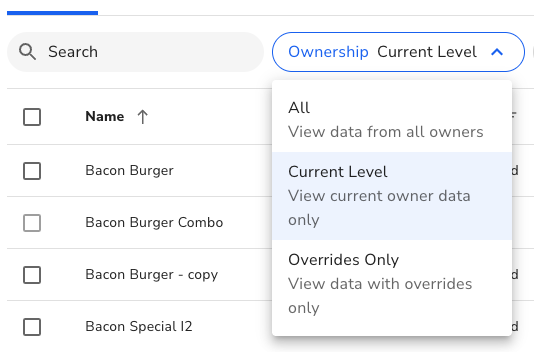
- All: Show all items regardless of the level created
- Current Level: Items created at the current level selected in the hierarchy
- Overrides Only: Items where an override exists
- Status (active, inactive)
- Display Group
- Select a display group to filter to items within a group
- Item Type (Standard, Matrix, Combo)
- Department
- Select a department to filter the item list
Promote Item
From the Enterprise level Item List view, set the Ownership Level to all to see Items created at any level. Find the item that you would like to move/promote up to the Enterprise level. This is an item that may have been created at the location level by mistake or a successful local item that you now wish to make available for another location. Next to the Save button is the Promote option. When selected, it will move the item ownership from the location to the Enterprise level.
A validation is applied against the item to ensure it has no dependencies that would prevent the promotion. For example, an item in a location-level department cannot be moved to the Enterprise level. An error message will indicate this dependency. The item in this case will need to be moved to an Enterprise department before promoting. Select the Promote button to complete the promotion.
