


Option 2: Default Printer by Device
To Configure on Shift4 Dine:
- Log in to the Workstation.
- Navigate to Manager > Settings > Hardware > Printers/KDS.
- Tap the Add New Device button at the bottom left of the screen.
.png?revision=1)
- Configure the printer as follows:
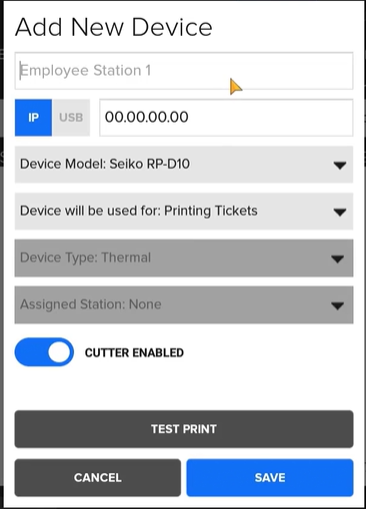
- Enter the printer name. It is recommended that you use a unique name that identifies the Tablet, such as "Tablet 1 Printer".
- Select the printer model using the drop-down arrow and tap Ok.
- Select what the device will be used for using the drop-down arrow. Select Printing Receipts and tap Ok.

- Enter the IP Address.
- Assign the correct station to the printer and tap Ok. The station number is found at the top right corner of the Tablet, next to the business date.
.png?revision=1)
- Tap Save.
- Tap the Test Print button on the bottom right of the screen to ensure the system recognizes the IP address and properly configures the printer with Shift4 Dine.
- Select Save to commit the configuration.
Note: You need to repeat this procedure for each Tablet, changing the Name and Assigned Station fields to match the Tablet. The IP address remains the same for each new Tablet printer.
Find the IP Address on the Epson TM-M30
- Power off the printer.
.png?revision=1)
- Press and hold Feed while turning on the printer.

- Continue to hold until it prints out a slip with various settings.

- The printed self-test slip will have the IP address on it.

- This is what you will enter when you configure the printer.