
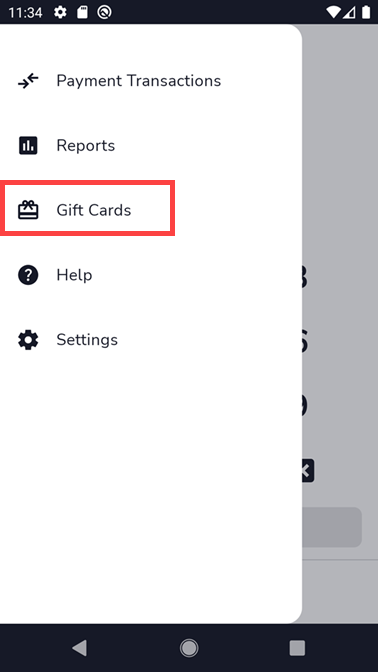
Description: Enable gift cards for Shift4 One and learn how to use gift card services from within the application with the steps below.
Adjust the Date and Time
- The device has to have the Date and Time settings configured properly for the gift card button to be visible from the Shift4 One application. To do this, exit out of the Shift4 One application and go to the device's Settings. If prompted, enter the password 9876. If this password is unsuccessful, newer models may use the password pax9876@@.

- Select Date & time from the Settings menu under 'System.'
Note: For the PAX A800 device, you will need to select System in order to get to the Date & Time settings as opposed to scrolling down the settings screen on A80/ A930 devices.
- When Date & time is displayed, enable Automatic date & time and Automatic time zone.

Important: If the time shows incorrectly on the device after making the Date and Time settings automatic, do not turn them off to manually correct it. These options need to remain automatic to allow communication with the Customer Hub and for the gift cards to work.


.png?revision=1)


.png?revision=1)
.png?revision=1)
.png?revision=1)


.png?revision=1)
.png?revision=1)
