

Use Payment Links in Shift4 One
Description: Use Payment Links to request card-not-present payments from customers by email. The customer receives a secure link and pays online. In Shift4 One, you can create, view, check the status of, and deactivate Payment Links.
Overview
Payment Links in Shift4 One simplify payment collection, especially for remote card-not-present payments. You can generate a unique payment URL for a specific transaction and share it with the customer by email. The link takes the customer to a Shift4-hosted payment portal, where they complete the payment in a checkout experience that keeps sensitive cardholder information off your local systems. All payment data is processed in Shift4’s secure environment.
Payment Link Statuses in Shift4 One
Every Payment Link has a status that shows what happened to it. Use the status to see whether the customer paid or whether the link can no longer be used.
Paid

The customer paid the Payment Link.
The payment details appear in the Transaction section, along with the date and time the link was paid. You can also view the payment on the Payment Transactions page in the terminal.
Expired

The Payment Link passed its expiration date without being paid. The customer can no longer use it, and no payment is collected.
The status appears as a badge under the amount. The details card shows who the link was sent to, the date and time it was created, and when it expired.
Deactivated

You deactivated the Payment Link before it was paid. The customer can no longer use it, and no payment is collected.
The status appears as a badge under the amount. The details card shows who the link was sent to, the date and time it was created, when it was due to expire, and when it was deactivated.
Access Payment Links in Shift4 One
Use the hamburger menu to open the Payment Links list.
- Tap on the hamburger menu (3 horizontal lines).

- Tap Payment Links.
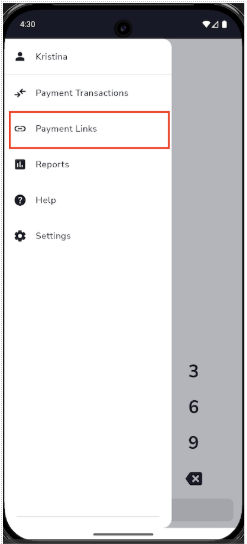
- The Payment Link list opens. To create a Payment Link, tap +Create New.

Create a Payment Link in Shift4 One
Create a Payment Link to email a customer a secure link to pay online.
- On the Payment Link list, tap +Create New.

- On the Payment Link screen, enter the following:
Field What to enter Amount The amount the customer needs to pay, for example, $100.00. Email The customer's email address. The Payment Link is sent to this address. Title A short name that tells the customer what the payment is for, for example, "Reservation Deposit". The customer sees this title, so make it clear and specific. Description (Optional) Extra details, such as the event date, service, or order reference. Expire Date The date the link stops working. If you do not select a date, the link expires after seven days. - Tap Create & Send.

- The Payment Link is emailed to the customer. You return to the Payment Link list, and the new link appears at the top.

View a Payment Link in Shift4 One
View a Payment Link to confirm it went to the right customer and to check how long it stays valid.

- On the Payment Link list, tap the Payment Link you want to view.
- The details screen shows the following information:
Detail Description Title The name entered when the link was created, for example "Reservation Deposit". Amount The amount the customer was asked to pay. Email The email address to which the Payment Link was sent. Date and time created The date and time the Payment Link was created and sent. Date and time of expiration The date and time the Payment Link stops working.
The details screen also shows the Payment Link’s status. For what each status means, see the Payment Link Statuses section.
Deactivate a Payment Link in Shift4 One
Deactivate a Payment Link when you no longer want the customer to pay through it, for example, if it was sent in error or the booking was canceled.
- On the Payment Link list, tap the Payment Link you want to deactivate.
- Tap the three-dot menu (⋯) in the upper-right corner.

- Tap Deactivate Link at the bottom of the screen.

- In the confirmation prompt, tap Deactivate. To keep the link active, tap Cancel.

- The message "Payment link deactivated" appears, and the link status changes to Deactivated immediately. Customers can no longer pay using the link. The details screen shows the date and time of deactivation.

For answers to other common questions, such as cost, limits, and receipts, see Payment Link FAQs for Shift4 One.