Pre-Authorization on the Handheld
Description: Learn how to perform pre-authorizations directly on the Handheld device, manage open tabs, and convert pre-auths into final payments without returning to the Workstation.
Availability: United States, Canada
Pre-authorization allows staff to start a tab by securing a payment method before orders are placed. This ensures funds are available and makes closing out faster at the end of service.
Key Features
- Places a temporary hold (default $1) on the guest’s credit card.
- Automatically updates the ticket with the Pre-auth status.
- Allows orders to be added to the ticket under the Open tab.
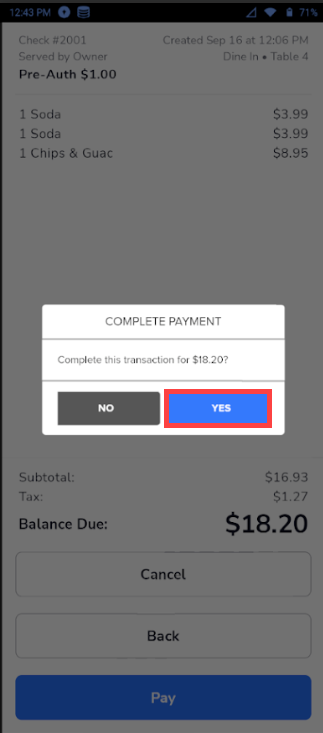
- Converts the pre-auth into the final payment when the tab is closed.
Benefits
- Eliminates the need to return to the Workstation for pre-authorizations.
- Speeds up table and bar service by starting tabs on the spot.
- Reduces the risk of declined payments at checkout.
- Provides a clear visual indicator of which tickets are pre-authorized.
How to Perform a Pre-auth
- On the Handheld, from the Orders screen, tap New Ticket.
- Tap the kebab menu (⋮) in the top-right corner.
- Tap Pre-auth.

- A confirmation screen appears with a default $1 authorization. Tap OK to continue.

- The ticket is renamed with the guest’s card type (e.g., VISA, MasterCard) once swiped or dipped. The ticket shows "Pre-Auth $1.00" as an active hold.

- Enter orders under the pre-authorized ticket. The tab remains open until the guest is ready to close out.
- When the guest is ready, tap Pay on the ticket.

- Select Credit Card. The system converts the pre-authorization into the final charge for the full balance due.
- Select Yes to confirm payment and close the check.